



The fastest way to export Telegram or WhatsApp chats without exposing your data is a browser-based, local-only Chrome extension. Mastros builds exactly that: two extensions that run entirely in your browser, writing exports directly to your device. Nothing touches a server. Outputs land in CSV, JSON, or JSONL, ready for LLM pipelines, research archives, or community management workflows.
Two extensions, two platforms, one privacy model:
- Mastros Telegram extension exports group members, chat messages, recent contacts, mutual groups, and bulk media from Telegram Web.
- Mastros WhatsApp extension exports group members, chat messages, and recent contacts from WhatsApp Web in read-only mode. No API, no automation, no messaging actions.
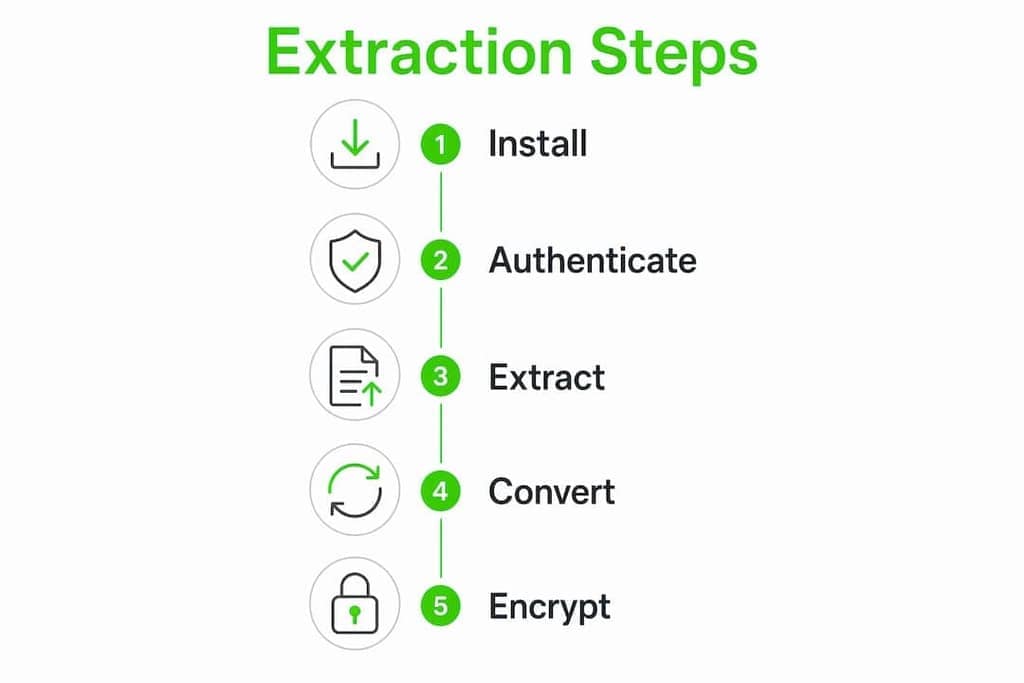
Both are GDPR-aware by design. After export, encrypt your files at rest with AES-256-GCM or XChaCha20-Poly1305 before storing or sharing them.
Pro Tip: Converting raw JSON exports to CSV before feeding them into an LLM pipeline can cut token usage by approximately 92% through format optimization alone.
Table of Contents
- How does privacy-first, browser-based chat extraction work?
- How do you verify a tool is truly privacy-first before installing?
- What do Mastros' Telegram and WhatsApp extensions export?
- Step-by-step: from install to verified local export
- How should you store and protect exported chat files?
- US legal and compliance considerations for local chat exports
- Key Takeaways
- Why local-first design is a constraint, not a feature
- Try Mastros' local-only chat exporters
- Useful sources and developer documentation
How does privacy-first, browser-based chat extraction work?
All processing happens inside your browser tab. On WhatsApp the extension reads what WhatsApp Web has rendered; on Telegram a single engine reads Telegram's own structured data through your signed-in session. Either way, no data is routed through Mastros servers.
Mastros uses layered extraction strategies: API or state-backed adapters when available, DOM fallback heuristics when not. Per-platform adapters make the extraction more durable when messaging apps update their UI. If a platform changes its DOM structure, the adapter layer absorbs the breakage rather than silently dropping messages, which can then be prepared for analysis using tools like real-time chat translation approaches.

Format conversion runs in-browser via WebAssembly, which handles heavy processing without leaving your device. The chatpack-web converter, for example, processes 100,000+ messages per second in the browser and compresses unnecessary JSON metadata into token-efficient CSV. That matters when you're feeding large chat histories into RAG pipelines.
On the credential side, there are no credentials: session tokens never leave your browser and the extension asks for no API keys, no passwords and no logins of its own. It has no background telemetry and makes no outbound calls during an export.
Pro Tip: Open Chrome DevTools (F12) → Network tab, then run an export. If you see zero outbound requests to external domains, the tool is genuinely local-only. Any extension phoning home will show up here immediately.
How do you verify a tool is truly privacy-first before installing?
The single most important check: confirm local-only processing and the absence of outbound telemetry. Everything else is secondary.
Run through this checklist before installing any chat export extension:
- Host permissions: Does the extension request only the messaging platform's domain? Broad host permissions (
<all_urls>) are a red flag. - Network activity: Run a test export and watch the DevTools Network tab. Zero external requests means local-only.
- Telemetry and analytics: Check the extension's source or privacy policy for explicit "no Google Analytics, no Sentry, no Firebase" statements. Operator-blind architectures reject telemetry at the build level, not just by policy.
- Source code or audit: Open-source code or a published privacy policy that explicitly denies analytics is a meaningful trust signal.
- Credential handling: Does the tool ask for your platform password, login code or API keys? Pass. The best answer to "where are my credentials stored" is that there are none.
- Export formats and limits: Confirm CSV, JSON, or JSONL output and whether message limits or stop-and-save features exist for large archives.
- Business model: Free tier plus paid subscription for higher export quotas is a normal, sustainable model. A free tool with no visible revenue source often monetizes your data instead.
For a deeper look at open-source transparency in chat extraction tools, the evaluation criteria above apply across the board.
Pro Tip: Download the extension's .crx or inspect its Chrome Web Store listing for the declared permissions. Cross-reference those permissions with what the privacy policy claims the extension does.
What do Mastros' Telegram and WhatsApp extensions export?
Both extensions share the same privacy posture: local-only processing, visible extraction diagnostics, configurable filename templates, message limit controls, and no default telemetry. The feature sets differ by platform.
Telegram extension
| Export type | Available | Notes |
|---|---|---|
| Group members | Yes | Full member list from Telegram Web |
| Chat messages | Yes | With message limits and format options |
| Recent contacts | Yes | From your Telegram Web session |
| Mutual groups | Yes | No credentials needed |
| Bulk media | Yes | Where Telegram Web client supports it |
WhatsApp extension
| Export type | Available | Notes |
|---|---|---|
| Group members | Yes | Read-only from WhatsApp Web |
| Chat messages | Yes | Read-only, no automation |
| Recent contacts | Yes | From WhatsApp Web session |
| API access | No | Read-only Web Mode only |
| Messaging actions | No | By design, no automation |
Both extensions export to CSV, JSON, or JSONL. For LLM and RAG workflows, CSV is the most token-efficient format. For structured data pipelines, JSONL works well for streaming ingestion. The WhatsApp extension's read-only Web Mode is documented on its product page, including the specific privacy guarantees around session handling.
For a comparison of Telegram API vs. browser extension trade-offs, the Mastros blog covers the technical differences in detail.
Step-by-step: from install to verified local export
The full flow is: install the extension, open the web client, select your chat, configure the export, download the file, and verify it locally. Most small exports finish in under five minutes.
Telegram export:
- Install the Mastros Telegram extension from the Chrome Web Store. (1 minute)
- Open Telegram Web and log in.
- If you need mutual groups, pick that extractor in the panel: there is no setup step and nothing to enable. (under a minute)
- Navigate to the chat or group you want to export.
- Open the extension popup, select your export format (CSV, JSON, or JSONL), and set a message limit if needed.
- Click export. For large archives, expect 10–60+ minutes depending on history size.
- Download the file to your device.
WhatsApp export:
- Install the Mastros WhatsApp extension from the Chrome Web Store. (1 minute)
- Open WhatsApp Web and scan the QR code.
- Select the chat or group you want to export.
- Open the extension popup, choose your format, and start the export.
- Download the file. Small chats typically finish in under five minutes.
Troubleshooting: If DOM-based extraction stalls after a WhatsApp UI update, use the built-in diagnostics in the extension popup. Try exporting in smaller chunks, or use stop-and-save to preserve progress. Telegram extraction reads structured data rather than the DOM, so a Telegram Web redesign does not break it the same way.
Pro Tip: After downloading, open the exported CSV or JSON in a text editor and spot-check message counts against what you see in the chat. For critical exports, run a line count (wc -l on macOS/Linux) and compare it to your expected message volume.
How should you store and protect exported chat files?
Encrypt exported files at rest with AES-256-GCM or XChaCha20-Poly1305 before storing them anywhere. These authenticated encryption algorithms protect against both unauthorized access and silent data corruption.
- Encryption tools: Use OS-level encrypted volumes (FileVault on macOS, BitLocker on Windows), VeraCrypt containers, or native encrypted folders.
- Key management: Store passphrases in a password manager, never alongside the exported files. Rotate access credentials when sharing is necessary.
- Backups: Keep offline, encrypted backups. Avoid cloud sync unless the provider encrypts client-side with keys you control.
- File hygiene: Delete exports you no longer need. Use secure deletion tools for sensitive data. Maintain a retention policy aligned with GDPR or your organization's rules.
Secure messaging guidance consistently recommends AES-256-GCM or ChaCha20-Poly1305 for at-rest encryption, paired with documented retention schedules and secure deletion for message history.
The primary privacy risk after a local export shifts entirely to you. Local-first tools move the security burden to your device, which means strong storage hygiene isn't optional.
US legal and compliance considerations for local chat exports
Local export does not remove legal responsibility. Before you export conversations involving other people, you need to respect consent, privacy rights, and any applicable workplace or platform terms.
- Consent: Get explicit consent from participants when exporting conversations you didn't author alone. Document that consent if the data will be processed or shared.
- Protected data: Flag and handle health, financial, or minor-related data with extra care. Avoid storing or sharing protected personal data without a clear legal basis.
- Organizational controls: Maintain audit logs of who exported what and why. Apply retention and deletion policies consistent with CCPA expectations where applicable.
- Data minimization: Use message limits and date filters to export only what you need. Anonymize or redact sensitive fields before sharing exports with third parties.
For GDPR-compliant chat data export workflows, including portability, retention, and deletion guidance, the Mastros blog covers the compliance specifics in depth.
This is practical guidance, not legal advice. Consult qualified legal counsel for regulated data or high-risk situations.
Key Takeaways
Local-only browser extraction with Mastros is the most auditable, privacy-preserving method for exporting Telegram and WhatsApp chat data, with AES-256-GCM encryption as the required next step after every export.
| Point | Details |
|---|---|
| Local-only processing | Mastros extensions run entirely in your browser; no data is uploaded to external servers. |
| Verify before installing | Check DevTools Network tab during a test export; zero outbound requests confirms local-only operation. |
| CSV for LLM workflows | CSV exports reduce token usage by approximately 92% compared to raw JSON for LLM pipelines. |
| Encrypt at rest | Protect exported files with AES-256-GCM or XChaCha20-Poly1305 immediately after download. |
| Mastros extensions | Telegram extension reads structured data through your signed-in session; WhatsApp extension operates in read-only Web Mode. Neither asks for credentials. |
Why local-first design is a constraint, not a feature
Most privacy claims in software are policies. Local-first design is an architecture. When an extension processes everything in your browser and has no telemetry, there's nothing to promise because there's nothing to hand over. That's the distinction that matters.
What gets underestimated is the verification side. Operator-blind design only holds if you can confirm it. Visible diagnostics, an auditable codebase, and a DevTools network check that shows zero outbound calls during export are what turn a privacy claim into a verifiable fact. Per-platform adapters and fixture-based regression tests are how Mastros keeps extraction working when Telegram or WhatsApp updates their UI, without silently dropping messages or breaking exports in ways you'd never notice.
The conventional wisdom is that privacy tools are harder to use. The actual trade-off is that local-first tools shift responsibility to you: your device, your encryption, your retention policy. That's not a downside. It's the point.
Try Mastros' local-only chat exporters
Your chat data is worth protecting from the moment it leaves the app. Mastros gives you two browser extensions that keep every byte on your device: no cloud uploads, no background telemetry, and no credential exposure.
- Local-only processing: exports write directly to your device
- CSV, JSON, and JSONL outputs: ready for LLM pipelines, spreadsheets, or research archives
- WhatsApp read-only Web Mode: safe exports with no automation or messaging
- Free tier available: start exporting immediately; paid plans unlock higher volume quotas
Try the Telegram scraper or the WhatsApp scraper and run your first local export in under five minutes.
Useful sources and developer documentation
These links let you audit the privacy claims and implementation details behind local-first chat extraction.
- chatpack-web: WebAssembly-based converter for turning raw chat exports into token-efficient CSV; open source and runs entirely in the browser.
- ChatArchive: Per-platform adapter architecture with visible diagnostics and fixture-based regression tests; useful for understanding how durable extraction works.
- Mastros main site: Product documentation, privacy policy, and links to both extensions.
- Ghost Protocol (About): Reference implementation of operator-blind architecture and zero-telemetry design principles.
- Server Compass encryption templates: Practical guidance on AES-256-GCM and XChaCha20-Poly1305 for at-rest encryption.
- ConnectyCube secure messaging guide: Retention schedules and encryption best practices for message history.
Run a small controlled export first, watch the Network tab, and check the extension's declared permissions before committing to a large archive. The verification steps are quick and the evidence is right there in DevTools.