



For exporting Telegram and WhatsApp data without uploading anything to a third-party server, the right answer is a privacy-first, client-side browser extension. Mastros builds exactly that: two separate Chrome extensions, one for Telegram Web and one for WhatsApp Web, that run entirely in your browser so your messages, member lists, and media never leave your device.
- Privacy model: all processing happens locally; no uploads or third-party servers involved
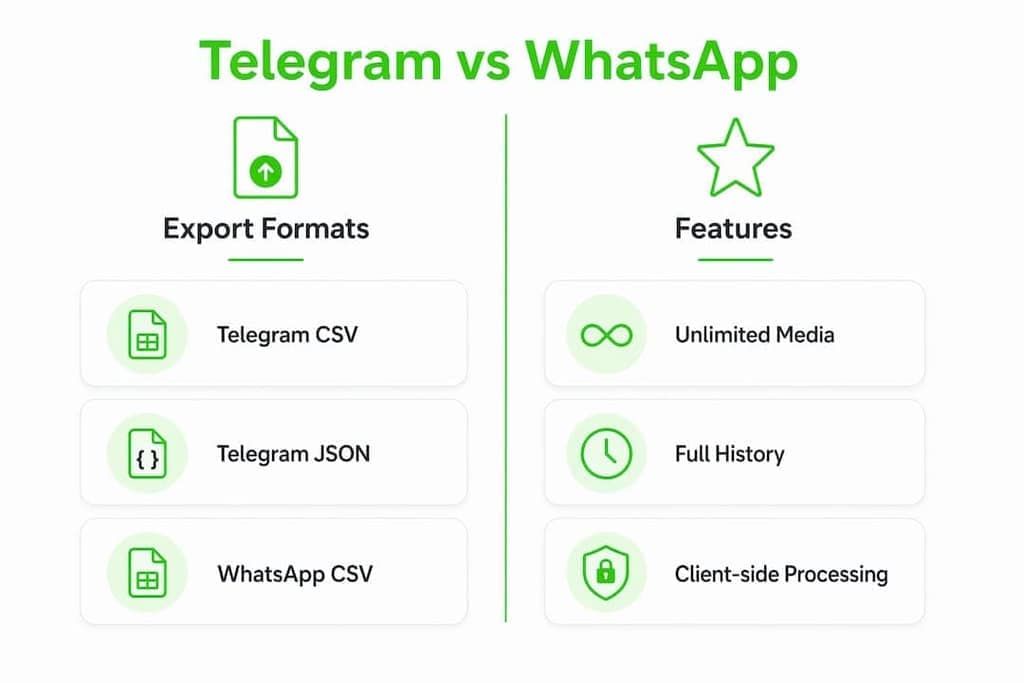
- Export formats: CSV, JSON, JSONL, and HTML, plus media ZIPs for Telegram
- Full-history capture: auto-scroll for WhatsApp; for Telegram, a single engine that reads Telegram's own structured data
- Platforms covered: Telegram Web, Telegram Desktop (official export), WhatsApp Web
Install both extensions from the Mastros product page and you can run your first export in under five minutes.
Pro Tip: Install the Telegram extension first, run a small test on a group you own, and confirm the CSV opens cleanly before you commit to a large export.

Table of Contents
- How do you choose a safe, reliable extractor for Telegram and WhatsApp?
- What do the Mastros Telegram and WhatsApp extensions export?
- How to export Telegram data: Desktop export vs. Mastros Web extraction
- How to export WhatsApp Web data in the browser
- What do the export formats give you?
- Privacy, safety, and U.S. legal considerations
- Key Takeaways
- Why the "privacy-first" label deserves more scrutiny than it gets
- Mastros gives you a clean, private starting point for both platforms
- Key documentation and sources
How do you choose a safe, reliable extractor for Telegram and WhatsApp?
Not every tool that calls itself "privacy-first" actually is. Here's the checklist that separates solid data extraction solutions from ones you should skip.
| Criterion | What to look for | Red flag |
|---|---|---|
| Privacy model | Client-side only; no server uploads | Any mention of "cloud processing" or required account creation on a third-party site |
| Export formats | CSV, JSON, JSONL, HTML | Only proprietary formats or locked exports |
| Completeness | Auto-scroll or "Scroll all" for WhatsApp; structured-data reads for Telegram | No auto-scroll means you only get what's currently rendered |
| Media support | Bulk media download to ZIP | No media preservation at all |
| Platform coverage | Telegram Web + WhatsApp Web | Desktop-only tools miss web-based workflows |
| Quotas and pricing | Clear free tier; transparent paid limits | Vague "unlimited" claims with no documented caps |
| Browser compatibility | Chrome MV3 extension; no extra software | Requires a desktop app install or browser flag changes |
Pro Tip: Check the Chrome Web Store listing's "Privacy practices" tab before installing any extension. If it requests permissions beyond the target platform's domain, that's worth investigating.
The practical difference between a complete and incomplete WhatsApp export almost always comes down to one feature: auto-scroll. WhatsApp Web uses incremental virtual scrolling, so an extension that doesn't scroll the chat before exporting will silently miss older messages. Always confirm "Scroll all + export" is present before you commit to a tool.
When your goal is research or archiving, prioritize format flexibility and full-history capture. For outreach or community management, member-list completeness and CSV output matter most. Match the criteria to your actual job, not a generic "best data mining programs" ranking.
What do the Mastros Telegram and WhatsApp extensions export?
Both extensions scrape the web UI of their respective platforms locally. Nothing is routed through Mastros servers.
Telegram extension (web.telegram.org):
- Group members, chat messages, recent contacts, and mutual groups
- Bulk media download packaged as a ZIP
- No credentials at all: a single engine reads Telegram's own structured data through the session you are already signed into
- Partial results save automatically if a run hits a quota limit or error, so you don't lose progress mid-export
WhatsApp extension (web.whatsapp.com):
- Group members, chat messages, and recent contacts
- Read-only Web Mode only: no API, no automation, no outbound messaging
| Feature | Telegram extension | WhatsApp extension |
|---|---|---|
| Export formats | CSV, JSON, JSONL, ZIP | CSV, JSON, JSONL |
| Media export | Yes (bulk ZIP) | Yes (bulk ZIP) |
| API credentials needed | None | None |
| Processing location | In-browser, client-side | In-browser, client-side |
| Free tier | 250 profiles / 300 messages a month | 100 profiles / 100 messages a month |
| Pro plan | $9 a month: 5,000 profiles / 10,000 messages | $9 a month: 5,000 profiles / 10,000 messages |
| Scale plan | $18 a month: 100,000 profiles / 500,000 messages | $18 a month: 100,000 profiles / 500,000 messages |
On Telegram, each downloaded media file counts as one message on every plan. Usage resets monthly.
How to export Telegram data: Desktop export vs. Mastros Web extraction
You have two solid options. Which one fits depends on what you're trying to capture.
Option A: Official Telegram Desktop export
- Open Telegram Desktop and go to Settings → Advanced → Export Telegram data.
- Select the data types you want: messages, contacts, sessions, media.
- Choose JSON or HTML as the output format and set a date range if needed.
- Click Export and wait for the download to complete.
The official Telegram export produces a structured JSON file (result.json) or HTML archive (messages.html) with a documented schema: personal_information, contacts, frequent_contacts, sessions, web_sessions, chats, and messages. This is the right choice when you need schema stability for downstream parsing or a full account-level archive. For a deeper look at the official workflow, the Telegram data export guide covers edge cases and date-range controls.
Option B: Mastros Telegram Web extraction
- Install the Mastros Telegram extension from the Chrome Web Store.
- Open web.telegram.org and log in.
- Pick your scraper mode: Chat Messages, Group Members, Mutual Groups, or Media Download.
- Run the extraction. The extension auto-scrolls on WhatsApp and reads structured data on Telegram.
- Download your CSV, JSON, or ZIP when the run completes.
Use Web extraction when you need targeted group member lists, mutual-group mapping, or bulk media bundling: data that the official Desktop export doesn't surface cleanly. For a full comparison of API vs. browser approaches, see Telegram API vs. browser extension.
Verification checklist: confirm timestamps are present, sender IDs are populated, and media links resolve before you close the tab.
Pro Tip: Run a small 50-message test export first. Open the JSON in a text editor and confirm the field names match what your downstream tool expects before you pull a full channel history.
How to export WhatsApp Web data in the browser
WhatsApp's virtual scrolling means the DOM only renders a window of messages at a time. Any exporter that skips auto-scroll will give you a partial file with no warning.
- Install the Mastros WhatsApp extension from the Chrome Web Store.
- Open web.whatsapp.com and log in via QR code.
- Open the chat or group you want to export.
- Click the extension icon and select Scroll all + export.
- Choose your format: JSON, HTML, or CSV.
- Wait for the scroll to complete (longer chats take longer), then download the file.
If the export stops mid-run or image placeholders appear instead of thumbnails, the most common cause is a slow connection causing WhatsApp Web to throttle rendering. Close other tabs, let the chat fully load, and restart the export. For a detailed troubleshooting walkthrough, the WhatsApp scraper guide covers the most common failure modes.
Verification checklist: timestamps present, emoji and reactions captured, embedded photos visible in HTML output, and the file saved locally with no upload prompt.
For downstream steps like exporting WhatsApp messages to CSV, the linked guide walks through column mapping and common spreadsheet gotchas.
What do the export formats give you?
Choosing the wrong format costs time later. Here's how each one fits a real workflow.
- CSV: opens directly in Excel or Google Sheets; best for quick lookups, filtering member lists, or feeding a CRM
- JSON: nested structure preserves full message threads and metadata; ideal for database ingestion or custom scripts
- JSONL: one record per line; preferred for ETL pipelines and tools like BigQuery or Snowflake that stream line-by-line
- HTML: human-readable archive with embedded media thumbnails; good for legal holds or sharing with non-technical stakeholders
Telegram's documented JSON schema includes these top-level fields: personal_information, profile_pictures, contacts, frequent_contacts, sessions, web_sessions, and chats (which contains the messages array). Single-chat exports are named messages.html or result.json. Knowing the field names before you build a parser saves a lot of guesswork.
| Format | Best for | Downstream tools |
|---|---|---|
| CSV | Spreadsheets, CRM import | Excel, Google Sheets, Airtable |
| JSON | Full-fidelity archives, APIs | Python, Node.js, MongoDB |
| JSONL | Streaming pipelines | BigQuery, Snowflake, Spark |
| HTML | Readable archives, legal holds | Browser, PDF export |
For teams building structured data extraction pipelines, JSONL is usually the cleanest handoff format because it doesn't require parsing a nested tree before ingestion.
Privacy, safety, and U.S. legal considerations
- Verify client-side claims: check the Chrome Web Store "Privacy practices" tab and confirm the extension's manifest (MV3) doesn't request broad host permissions beyond the target platform's domain.
- Encrypt exports at rest: store CSV and JSON files in an encrypted folder (macOS FileVault, Windows BitLocker, or VeraCrypt) and keep media ZIPs on a secure drive.
- Limit access: don't share raw export files over email or unencrypted cloud storage; use access-controlled folders.
- Consent and platform terms: in the U.S., exporting data from groups or chats you don't own may implicate the Stored Communications Act and platform terms of service. Get explicit consent from participants when you're collecting data for research or outreach.
The safest posture is to export only data you have a legitimate reason to hold, store it encrypted, and delete it when the project is done. This isn't just good ethics. It's the practical standard that keeps you on the right side of platform terms and U.S. privacy norms.
This article is general information, not legal advice. Confirm current rules with a qualified attorney or the relevant platform's terms of service for your specific situation.
Key Takeaways
For Telegram and WhatsApp exports, client-side browser extensions are the only approach that guarantees your data never leaves your device.
| Point | Details |
|---|---|
| Choose client-side processing | Verify the extension runs locally with no server uploads before installing. |
| Auto-scroll is non-negotiable for WhatsApp | Without it, you get only the currently rendered messages, not full history. |
| Match format to your workflow | Use CSV for spreadsheets, JSONL for pipelines, HTML for readable archives. |
| Secure exports immediately | Encrypt files at rest and limit access; delete exports when the project ends. |
| Mastros covers both platforms | Free tier: 500 profiles / 1,000 messages/month; paid plans unlock higher quotas and unlimited media downloads. |
Why the "privacy-first" label deserves more scrutiny than it gets
Most tools that claim privacy-first processing are telling the truth about the happy path. The real question is what happens when something goes wrong: does the extension retry through a fallback server? Does it log errors remotely? Does the media downloader cache files somewhere outside your device?
The honest answer is that you can't fully verify this without reading the source code or a credible third-party audit. What you can do is check the manifest permissions, read the Chrome Web Store privacy disclosure, and test on a throwaway account before running it on anything sensitive. Mastros publishes its privacy claims directly in the Chrome Web Store listing, which is at least a public, accountable statement. That's a better starting point than a tool with no disclosure at all.
The other thing most guides miss: for WhatsApp specifically, the export quality gap between tools that implement auto-scroll well and those that don't is enormous. A tool that captures 200 messages from a 10,000-message chat isn't a privacy risk. It's just broken. Prioritize completeness alongside privacy, because an incomplete export can be worse than no export if you're making decisions from it.
Mastros gives you a clean, private starting point for both platforms
Your messages and member data are yours. Mastros keeps them that way: both extensions run entirely in your browser, export to open formats you control, and never touch a third-party server.
Getting started takes about two minutes. Install the Telegram scraper or the WhatsApp scraper, open the platform's web interface, pick your export mode, and download your file. The Telegram free tier covers 250 profiles and 300 messages per month with no credit card required. Pro and Scale plans unlock higher quotas and unlimited media downloads for teams running larger exports. Chrome is the only requirement; no desktop app, no proxy setup, no API keys at all.
Questions? The Mastros support team is reachable directly from the Chrome Web Store listing page.
Key documentation and sources
- Telegram import/export documentation: official schema reference for JSON/HTML exports, field definitions, and single-chat file naming conventions
- Mastros Telegram Data and Media Scraper (Chrome Web Store): feature list, privacy practices disclosure, and quota details for the Telegram extension
- WhatsApp Web Chat Export (Chrome Web Store): confirms "Scroll all + export" behavior and in-browser format support for WhatsApp exports
- How to extract data: Data extraction methods explained (Fivetran): general ELT/ETL extraction terminology and pipeline context for downstream use cases