


Mastros's LinkedIn exporter outputs four file types: CSV, Excel (XLSX), JSON, and JSONL. Use CSV for CRM uploads and spreadsheets, JSON or JSONL when you're feeding nested data into an AI pipeline, and XLSX only when a native spreadsheet file is a hard requirement. Every export runs locally in your browser, so raw profile data never touches a third-party server before you decide what to do with it.
The right choice usually comes down to one question: where is this file going?
- CSV — CRM imports, ad-audience uploads, quick spreadsheet review
- XLSX — when a client or teammate specifically needs a native Excel file
- JSON — nested profile data, schema-aware apps, API clients
- JSONL — AI fine-tuning, RAG pipelines, large streaming exports
Pro Tip: If you're not sure which format a destination tool expects, export CSV first. It's the smallest, fastest to inspect, and the easiest to convert into anything else later.
Key Takeaways
The right LinkedIn export format depends entirely on the destination system: CSV for CRMs and spreadsheets, JSON for nested schema-aware data, and JSONL for streaming AI pipelines.
| Point | Details |
|---|---|
| Match format to destination | Decide where the file is going before exporting, not after. |
| CSV for CRM and quick analysis | Use flat CSV rows for CRM uploads and interactive AI chat analysis. |
| JSONL for AI pipelines | Choose JSONL for fine-tuning and streaming ingestion since each line loads independently. |
| Normalize identifiers before hashing | Lowercase emails and convert phone numbers to E.164 before hashing for CRM matching. |
| Mastros exports all four formats locally | Mastros's LinkedIn exporter outputs CSV, XLSX, JSON, and JSONL, processed entirely in-browser. |
Table of Contents
- LinkedIn Export Formats Compared: CSV vs. XLSX vs. JSON vs. JSONL
- Which Format Fits Your Workflow
- Keeping LinkedIn Exports Privacy-First
- Converting and Importing Your Export Without Errors
- Who Builds This and Why the Design Choices Matter
- File Size and Record Limits by Format
- Automating Repeat Exports the Right Way
- Fixing Common Import Errors
- What Actually Matters When Picking a Format
- Try the Mastros LinkedIn Exporter
- Sources
- FAQ
LinkedIn Export Formats Compared: CSV vs. XLSX vs. JSON vs. JSONL
Each format handles the same underlying LinkedIn data (names, titles, companies, profile URLs, Sales Navigator lead fields) differently, and that difference shows up the moment you try to load the file somewhere.
CSV stores everything as flat rows with a single header line. It's the most token- and size-efficient format for flat tabular data, which is why it's the default recommendation for interactive AI analysis in tools like ChatGPT and for most CRM uploads. The catch is quoting: LinkedIn profile fields often contain commas (job titles, company names with "Inc," in them), so a poorly escaped CSV can silently shift columns. Watch encoding too. A file saved without proper UTF-8 support will mangle accented names.
XLSX gives you a native spreadsheet with formatting, multiple sheets, and formulas intact, which matters when you're handing a file to someone who lives in Excel. The tradeoff is overhead. XLSX packages data inside XML with styling and metadata, and that overhead can run 5 to 10 times larger than an equivalent CSV holding the same rows. Some AI tools, including the Claude API, won't accept XLSX directly, so you'll end up converting to CSV anyway for anything beyond human review.
JSON preserves structure. A LinkedIn profile export in JSON can nest experience history, skills, and education under one record instead of flattening everything into repeated columns. That's genuinely useful for schema-aware ingestion, but it comes at a cost: JSON repeats key names on every single record, which adds meaningful per-row overhead compared to a CSV that only states its headers once.
JSONL (JSON Lines) solves a different problem entirely. Instead of one giant array, JSONL writes one self-contained JSON object per line, which means a parser can process the file without loading the whole thing into memory. That's why fine-tuning APIs, Elasticsearch's Bulk API, and BigQuery streaming jobs either require or strongly prefer it. If you're exporting thousands of Sales Navigator leads for a machine learning pipeline, JSONL is the format built for that job.
Which Format Fits Your Workflow
Formatting choice should follow the destination system's requirements, not just what feels flexible on your end. Here's how that plays out across the workflows Mastros users run most often.
- CRM and ad-audience uploads: use CSV. Most CRMs (and ad platforms that support audience matching) expect flat rows with predictable headers. Before uploading, hash or normalize identifiers as your platform requires, and confirm column names match the CRM's import template exactly.
- Spreadsheet-heavy analysis: XLSX works, but consider CSV for interoperability. If you're just filtering, sorting, and eyeballing a lead list, XLSX is fine. If that same file also needs to feed an AI tool or a second system later, start with CSV and open it in Excel when needed. Going CSV first avoids a conversion step down the line.
- AI pipelines and fine-tuning: use JSONL. Its line-by-line structure supports streaming ingestion and safe appends, which matters when you're running a long export in batches or re-running a scrape without wanting to duplicate records.
- Data science and nested attributes: use JSON. When you need experience history, skills, and education preserved as nested objects rather than flattened columns, JSON keeps that relationship intact. If you're eventually loading into a data warehouse, plan to convert to a columnar format like Parquet at that stage.
- Archival: compressed JSON or CSV, depending on retrieval needs. If you'll need to query specific fields later, JSON's structure holds up better. If you just need a record of who was in a list on a given date, a compressed CSV is lighter and easier to reopen.
Pro Tip: Match the format to where the file lands, not to what feels most "complete." A CRM doesn't care about nested job history, and a fine-tuning job doesn't care about spreadsheet formatting. Export for the destination.
Keeping LinkedIn Exports Privacy-First
Because Mastros processes exports directly in your browser, local-first architecture keeps raw profile data on your device until you choose to save a file. That matters more than it sounds. A tool that uploads scraped LinkedIn data to a remote server before handing you a download introduces a third party into your data flow, and that third party may need its own data processing agreement depending on your jurisdiction and the sensitivity of what you're collecting. Keeping the process local sidesteps that entirely.
That said, local processing doesn't eliminate the need for good handling once the file exists on your machine. A few habits worth building in:
- Export only the fields you actually need. If a campaign only needs name, title, and company, don't pull full profile history along with it.
- Hash identifiers like email addresses when a downstream system (an ad platform, for instance) only needs to match records, not read them.
- Store exported files with restricted access and set a retention window instead of letting CSV files pile up in a shared drive indefinitely.
- Keep a simple log of what was exported, when, and by whom. If a compliance question comes up six months later, you want an answer faster than "let me check."
Pro Tip: Before hashing emails or phone numbers for CRM matching, normalize them first. Lowercase every email address and convert phone numbers to E.164 format. Hashing two versions of the same identifier produces two different hashes, which breaks the match.
Converting and Importing Your Export Without Errors
Most import failures trace back to a handful of predictable issues, and catching them before you upload saves a round of frustrated re-exports.
- Confirm the file is UTF-8 encoded before opening it in anything other than a plain text editor. Accented characters and special symbols in company names are the most common casualty of a mismatched encoding.
- Check for unescaped commas or line breaks inside CSV fields. A job title like "Sales, Marketing & Growth" needs to be properly quoted or it will split into extra columns.
- Match your header row to the destination system's exact expected column names. CRMs are often case-sensitive and won't auto-map "Company Name" to "company_name."
- When converting JSON for use in a pipeline, split a single array into one JSON object per line to produce valid JSONL. For API clients expecting standard JSON, keep it as an array of objects mapping headers to values, which is the format most libraries expect by default.
- Verify hashed identifier fields (if you're using them) are consistently formatted before import. A mismatch in casing or spacing will produce silent non-matches instead of an error message.
Quick pre-import checklist: UTF-8 confirmed, headers matched, quoting checked, identifiers normalized, file size within your target system's limit.
Who Builds This and Why the Design Choices Matter
Elias, the developer behind Mastros, built the LinkedIn exporter around a specific constraint: growth teams and recruiters need structured data without shipping raw profile information to an external server first. That's the reasoning behind processing every export locally in the browser rather than routing it through the cloud.
The exporter covers people, companies, jobs, and post search results, along with Sales Navigator leads and accounts, and it can output any of the four formats covered here: CSV, XLSX, JSON, or JSONL.
Local processing means the export never leaves your machine until you decide to save it. That single design choice removes an entire category of third-party data exposure that cloud-based scrapers can't avoid.
- CSV, XLSX, JSON, JSONL, all supported from the same export flow
- People, company, job, and post search results, plus Sales Navigator leads and accounts
- No server upload step between LinkedIn's page and your downloaded file
File Size and Record Limits by Format
Every export format has a practical ceiling, and it's usually less about the format itself and more about what happens when a file that size hits your target system.
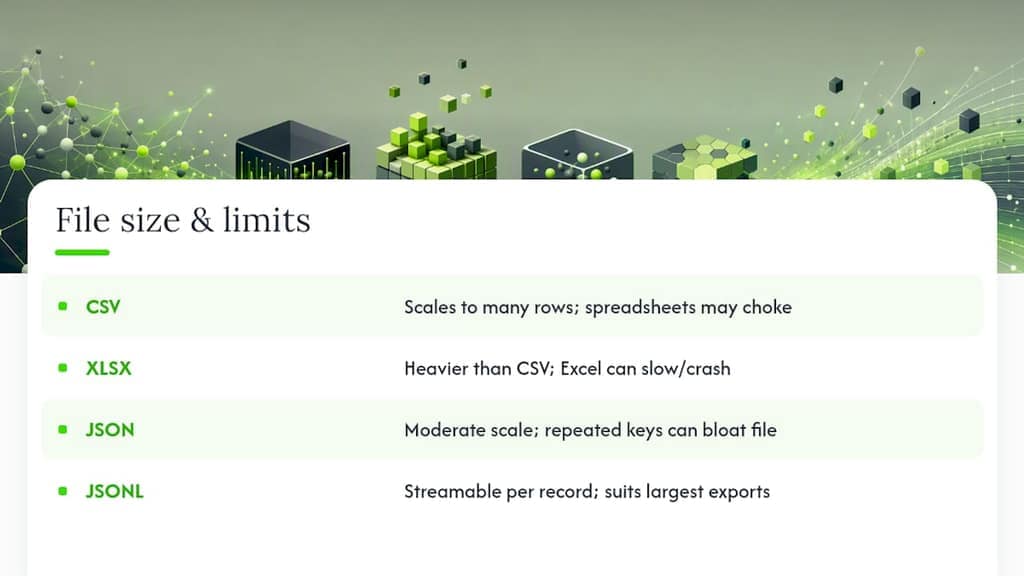
CSV handles large record counts well since each row adds minimal overhead, but a CSV with tens of thousands of rows can become unwieldy to open in spreadsheet software, which often chokes well before a database or CRM would. XLSX hits a wall sooner. Because of its XML packaging and formatting overhead, a large XLSX file can grow significantly heavier than the same data in CSV, and very large XLSX files sometimes slow down or crash desktop Excel entirely.
JSON scales fine for moderate record counts, but because every record repeats its own key names, a JSON export of thousands of nested LinkedIn profiles can balloon in size compared to the equivalent CSV or JSONL file. That overhead compounds fast when you're exporting full profile histories rather than a handful of summary fields.
JSONL sidesteps the biggest scaling problem other formats run into: since each line stands alone, a script can process the file one record at a time without ever loading the entire thing into memory. That's what makes it the practical choice for the largest Sales Navigator pulls, where a single export might represent thousands of lead records.
The general rule: if you're exporting a small, targeted list, format choice barely matters for size. Once you're pulling thousands of records at once, lean toward CSV for flat data and JSONL for anything nested or destined for a pipeline.
Automating Repeat Exports the Right Way
Recruiters and sales teams rarely export once. A weekly Sales Navigator pull or a recurring recruitment search needs a repeatable process, not a one-off manual export.
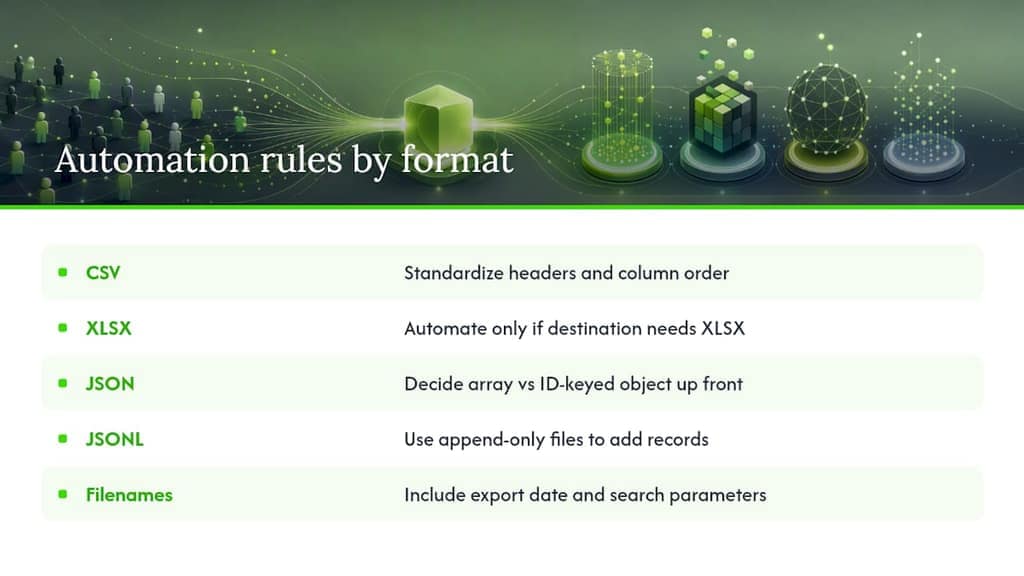
For CSV, standardize your header order and column names before automating anything downstream, so every export drops cleanly into the same CRM import template without remapping fields each time. For XLSX, only automate if the destination genuinely requires a spreadsheet file. Otherwise, automating a CSV export and converting to XLSX on demand is lighter and less error-prone.
For JSON, decide up front whether your automation expects an array of objects or a single object keyed by profile ID. Changing that structure mid-pipeline breaks whatever's consuming it downstream. For JSONL, take advantage of its append-only nature: because each line is independent, you can add new records to an existing file without rewriting the entire export, which is especially useful for long-running lead generation campaigns that pull new profiles daily rather than all at once.
Whichever format you automate, build in a naming convention that includes the export date and search parameters. A file named sales-nav-leads.csv becomes useless the third time you overwrite it. A file named sales-nav-leads-2026-03-12-saas-founders.csv tells you exactly what it is six months later.
Fixing Common Import Errors
Most import errors are format mismatches, not data problems, and they follow a predictable pattern once you know what to look for.
CSV imports failing or misaligning columns almost always trace back to unescaped commas inside a field, like a job title containing a comma, or an encoding mismatch that corrupts special characters. Open the file in a plain text editor first if a CRM rejects it. That's usually faster than guessing.
XLSX files rejected by an API or AI tool typically mean the tool simply doesn't parse spreadsheet binaries. Convert to CSV rather than troubleshooting the XLSX upload directly.
JSON imports failing schema validation often come down to a mismatch between what the destination expects (an array of objects) and what was exported (a single nested object, or a different key structure). Check the target API's documentation for its exact expected shape before assuming the export itself is broken.
JSONL files that "won't load" are frequently just being fed to a tool expecting standard JSON. JSONL is not valid JSON as a whole file. It's a series of separate JSON objects. If a tool throws a parsing error on a JSONL file, confirm it actually supports line-delimited input before troubleshooting further.
What Actually Matters When Picking a Format
Most advice on exporting LinkedIn data treats format choice as a technical afterthought, something you decide after the export is already sitting on your hard drive. That's backward. The format decision should happen before you click export, because it determines what fields you even need to pull.
The conventional wisdom leans hard on "just export everything in JSON, it's the most complete." That's true in the narrowest sense and misleading in every practical one. Completeness has a cost. Nested JSON with full profile histories for a few thousand Sales Navigator leads gets heavy fast, and if your actual destination is a CRM that only reads flat columns, you've built extra work for zero benefit.
What the reader should prioritize first isn't format sophistication. It's naming the destination system honestly before exporting anything. A CRM wants CSV. A fine-tuning job wants JSONL. A colleague who lives in Excel wants XLSX. Working backward from the destination, rather than forward from "what format captures the most data," is the difference between a five-minute import and an afternoon of cleanup.
Try the Mastros LinkedIn Exporter
If the workflows above sound like your week, the Mastros LinkedIn exporter already outputs CSV, XLSX, JSON, and JSONL from the same tool, covering people, company, job, and post searches along with Sales Navigator leads and accounts. Because every export processes locally in your browser, there's no upload step between LinkedIn's page and the file landing on your machine. That local-first design is the whole point: your search results become a structured file without routing through an external server first.
Whether you need a CRM-ready CSV this afternoon or a JSONL file for a fine-tuning job next week, the format is a setting, not a separate tool. Start with the free plan on the Mastros LinkedIn exporter page to run your first export and see which format fits your workflow before committing to a paid tier.
Sources
- ECMA-404: The JSON Data Interchange Standard (ECMA International)
- Best Format for ChatGPT and Claude: CSV, JSON, JSONL, or Excel? (SplitForge Blog)
- JSONL format: Read, write, and stream line-delimited JSON — Jsonic
FAQ
What File Formats Does the Mastros LinkedIn Exporter Support?
Mastros exports LinkedIn data as CSV, Excel (XLSX), JSON, or JSONL, covering people, companies, jobs, posts, and Sales Navigator leads and accounts.
Which LinkedIn Export Format Is Best for CRM Imports?
CSV is the best choice for CRM imports because it's the most token- and size-efficient flat format and matches how most CRMs expect column-based data.
Should I Use JSON or JSONL for AI Fine-Tuning?
Use JSONL. Its line-delimited structure lets pipelines process records one at a time without loading the entire file, which is what most fine-tuning APIs expect.
Does Mastros Upload My LinkedIn Data to a Server?
No. Mastros processes exports directly in your browser, so profile data stays on your device until you choose to save a file.
Can I Convert a CSV Export to JSON Later?
Yes. The standard approach is converting each CSV row into an array of objects that maps headers to values, which most APIs and libraries accept by default.