


You can export LinkedIn leads two practical ways: use LinkedIn's native exports and CRM sync for basic fields (name, title, company, profile URL), or use a privacy-first, browser-based extension plus external enrichment when you need emails and phones for real outreach. Manual copy-paste is fully compliant but scales to nothing. Automated cloud scrapers move fast but carry real account-ban risk. The middle path, a read-only browser extension that processes data locally, gives you structured, CRM-ready records without uploading anything to a third-party server.
Quick decision guide:
- Need names, titles, and LinkedIn URLs only? Use LinkedIn's native export or Sales Navigator CSV.
- Need emails, phones, and enriched firmographics? Export the CSV for profile URLs, then run those URLs through an external enrichment service.
- Running paid LinkedIn ads? Download lead gen form responses directly from Campaign Manager.
- Want the safest third-party path? Use a read-only browser extension with local processing and no messaging features.
Table of Contents
- What does LinkedIn let you export natively?
- Why do teams turn to third-party tools despite LinkedIn's native options?
- Which export methods are actually safe for your account?
- Step-by-step: export Sales Navigator leads into a CRM-ready CSV
- What are the real compliance and account-safety risks?
- How to clean, enrich, and format your exported leads for CRM import
- After export: how to segment, enrich, and sequence your leads
- Key Takeaways
- The case for local processing (and why it actually matters)
- Mastros LinkedIn Data Exporter: local processing, no server uploads
- Useful sources
- FAQ
What does LinkedIn let you export natively?
LinkedIn offers three distinct native export paths, and each one returns different fields. Knowing which path fits your use case saves you from chasing data that was never there to begin with.
Campaign Manager lead gen form export
If you run LinkedIn ads with Lead Gen Forms, this is the cleanest native export available. Go to Campaign Manager → your campaign → Lead Gen Form ad set → Download leads. LinkedIn generates a CSV of every form submission, including whatever fields the form collected. If you asked for email, you get email. LinkedIn's official documentation confirms the available fields and the download path. The catch: this only covers paid ad leads, not organic search results or saved contacts.
Settings & Privacy data export
Under Settings & Privacy → Data Privacy → Get a copy of your data, LinkedIn lets you request an archive of your account. You can select connections, messages, and profile data. The file arrives by email, usually within 24 hours. This path is designed for account archiving, not active prospecting. It does not export Sales Navigator search results or live lead lists, so don't rely on it to capture a search you just ran.
Sales Navigator lead list and CRM sync
Sales Navigator is the most useful native path for prospecting. You can save leads to a list, then export that list as a CSV or sync it directly to a connected CRM. LinkedIn's Sales Navigator documentation outlines what the export includes and what sync behavior depends on your plan tier. The exported CSV typically contains the fields below, and nothing more.
| Export path | Name | Title | Company | LinkedIn URL | Phone | |
|---|---|---|---|---|---|---|
| Campaign Manager Lead Gen CSV | ✓ | ✓ | ✓ | ✓ | If collected by form | ✗ |
| Settings & Privacy Data Export | ✓ | ✓ | ✓ | ✓ | ✗ | ✗ |
| Sales Navigator CSV | ✓ | ✓ | ✓ | ✓ | ✗ | ✗ |
| Sales Navigator CRM Sync (Salesforce, HubSpot, Dynamics) | ✓ | ✓ | ✓ | ✓ | ✗ | ✗ |
Steps to export a Sales Navigator lead list:
- Open Sales Navigator and navigate to Lists → Lead Lists.
- Select the saved list you want to export.
- Click the Actions menu (top right of the list view).
- Choose Export to CSV (availability depends on your plan tier).
- Download the file from the notification or email LinkedIn sends.
- For CRM sync, go to Settings → CRM Settings and connect Salesforce, HubSpot, or Microsoft Dynamics.
One practical note: community reports confirm that Sales Navigator has no one-click export for raw search results. You must save leads to a list first, then export the list. That extra step catches a lot of people off guard.
Why do teams turn to third-party tools despite LinkedIn's native options?
The native exports are clean and compliant, but they leave out the two fields that most outreach campaigns actually need: email addresses and phone numbers. A CSV of names and LinkedIn URLs is a starting point, not a contact list.
Here is what native exports consistently miss:
That gap is why third-party tools exist, and they fall into four broad categories:
- Cloud scrapers: — Run on external servers, often faster and higher volume, but they send requests from non-human IPs and are more likely to trigger LinkedIn's detection systems.
The trade-off is straightforward: speed and data completeness go up as you move from native exports toward automation, and so does account risk. The safest third-party path is a read-only browser extension paired with an external enrichment service.
Which export methods are actually safe for your account?
Read-only browser extensions that parse the DOM locally are the right call for most sales teams and recruiters. They read what is already rendered on your screen, write nothing back to LinkedIn, and keep your data on your machine. No server upload means no third party holding your LinkedIn session data.
When evaluating any browser extension for LinkedIn exports, check for these features:
- Local processing only: The extension should not make outbound requests to its own servers during an export. You can verify this yourself.
- Visible export preview: You should see the fields and row count before any file is written.
- Pacing and dedup controls: The extension should throttle its page reads and skip duplicate profiles automatically.
- Export formats: CSV and Excel for CRM imports; JSON or JSONL for developers and data pipelines.
- No messaging or automation features: Any tool that combines extraction with automated messaging raises LinkedIn's behavioral alarms faster than extraction alone.
Pro Tip: Open Chrome DevTools (F12 → Network tab) before running a test export. If the extension makes outbound requests to an external domain during the export, your data is leaving your machine. A genuinely local extension shows no such requests.
The Chrome Web Store listing for LinkedIn → CSV Exporter documents typical fields a browser exporter returns: name, job title, company, location, and profile link. Emails and phones are not included, which is expected for a read-only tool. Extensions that claim to extract emails directly from LinkedIn profiles are almost certainly calling private API endpoints, which is a different risk category entirely.
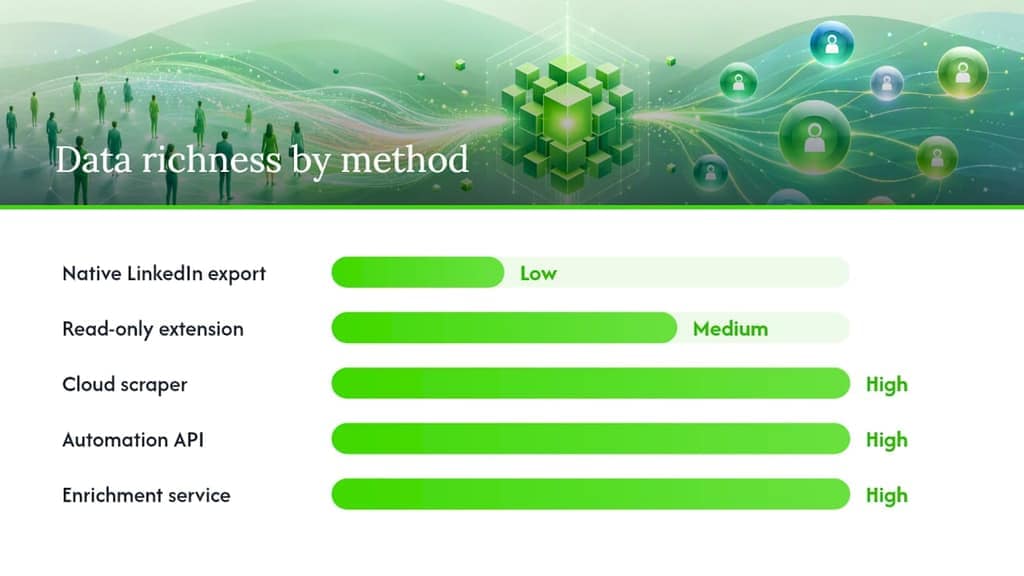
| Method | Data richness | Account risk | Privacy | CRM-ready out of box |
|---|---|---|---|---|
| Native LinkedIn export | Low (no email/phone) | None | High | Partial |
| Read-only browser extension | Medium (no email/phone) | Low | High | Yes, with enrichment |
| Cloud scraper | High | High | Low | Yes |
| Automation API tool | High | Very high | Low | Yes |
| Enrichment service (URL-based) | High | None | High | Yes |
Safe export workflow summary:
- Run your Sales Navigator search and apply filters.
- Save target leads to a named list.
- Open your read-only browser extension and point it at the list.
- Preview the fields before exporting.
- Export to CSV.
- Pass the LinkedIn profile URL column to an external enrichment service for emails and phones.
This keeps all LinkedIn interaction read-only and human-paced, which is the behavior pattern least likely to trigger a restriction.
Step-by-step: export Sales Navigator leads into a CRM-ready CSV
This workflow covers the full path from a saved Sales Navigator list to a clean CRM import. Follow it in order and you will avoid the most common import failures.
Preparation checklist:
- Confirm your Sales Navigator plan includes CSV export (Advanced and Advanced Plus tiers include it; Core may not).
- Name your lead list clearly before exporting: use a format like
ICP-SaaS-VP-Sales-2026-06so you can trace the source later. - Decide your CRM's required fields before you export, not after.
Export steps:
- Log into Sales Navigator and open Lists → Lead Lists.
- Select your target list and review it for obvious duplicates or irrelevant profiles.
- Click Actions → Export to CSV.
- Wait for LinkedIn's email notification (usually a few minutes; large lists can take longer).
- Download the CSV from the link in the email or from the notification bell.
- Open the file in Excel or Google Sheets and verify the column headers: First Name, Last Name, Title, Company, LinkedIn Profile URL, Saved Date.
CSV cleanup and import prep:
- Split any combined "Full Name" column into First Name and Last Name if your CRM requires separate fields.
- Normalize company names (remove "Inc.", "LLC" variants so dedup logic works correctly).
- Add a Lead Source column with a consistent value like
LinkedIn-SalesNav. - Add an Export Run Date column so you can track data freshness.
- Remove rows where the LinkedIn Profile URL is blank — those records will not enrich correctly.
- Run a dedup pass on LinkedIn Profile URL before import; it is the most reliable unique identifier in the set.
For CRM import mapping, the LinkedIn Profile URL column should map to a custom field (e.g., linkedin_url) in HubSpot, Salesforce, or Pipedrive. Do not discard it after import. That URL is your enrichment key and your provenance record.
Pro Tip: Tag every import batch with a unique source tag in your CRM (e.g., sn-export-2026-06-15). When a lead converts, you can trace it back to the exact list and filter set that produced it.
What are the real compliance and account-safety risks?
LinkedIn actively monitors for behavior that looks like scraping, and the consequences range from a temporary search restriction to a permanent account ban. Knowing what triggers detection is more useful than a generic "be careful" warning.
Common detection triggers:
- Rapid, sequential page visits that exceed normal human browsing speed
- Extensions that call LinkedIn's private API endpoints (not just reading the rendered DOM)
- Automated messaging sent from the same tool that is also extracting data
- High-volume exports run continuously without pacing gaps
- Logging in from multiple IP addresses in a short window while running extraction
Best-practice checklist:
- Use read-only tools only. If the extension can send messages, do not use it for extraction.
- Set hourly export caps. Most safe extensions let you configure a row limit per session.
- Enable dedup so the tool does not revisit the same profile repeatedly.
- Run exports during normal business hours, not overnight in bulk.
- Never run extraction and automated outreach from the same tool or the same session.
- Review LinkedIn's User Agreement periodically — the relevant section covers automated data collection.
On the privacy side, US business-to-business outreach operates under different expectations than consumer marketing, but you still have obligations. When you import LinkedIn leads into a CRM and begin outreach, include a clear opt-out mechanism in every message. Do not store more data than you need for the outreach purpose, and do not share exported lead data with third parties outside your organization. If a lead asks how you found them, you should be able to answer honestly.
How to clean, enrich, and format your exported leads for CRM import
A raw Sales Navigator CSV gets you about halfway to a usable contact record. The cleanup and enrichment steps are where most teams lose time, usually because they skip column normalization and then spend hours fixing failed imports.
Required and recommended CRM columns:
- First Name, Last Name (required)
- Job Title (required)
- Company Name (required)
- LinkedIn Profile URL (required — your enrichment and dedup key)
- Email Address (required for outreach — add via enrichment)
- Phone Number (recommended)
- Lead Source (required — e.g.,
LinkedIn-SalesNav) - Export Run Date (recommended)
- ICP Tier or Segment Tag (recommended)
Normalization steps:
- Standardize company names: strip legal suffixes inconsistently applied ("Corp", "Corporation", "Corp.") and pick one form.
- Remove generic email domains (gmail.com, yahoo.com) if you are doing B2B outreach — those are personal addresses, not business contacts.
- Apply consistent country codes to phone numbers if your CRM requires E.164 format (+1 for US numbers).
- Split combined name fields if the export returns "Full Name" as a single column.
For enrichment, pass the LinkedIn Profile URL column to an external enrichment service that matches on public databases rather than scraping LinkedIn directly. This approach returns verified emails and phones without any additional LinkedIn activity on your account.
| CRM field | Maps from CSV column | Notes |
|---|---|---|
| First Name | First Name | Split from Full Name if needed |
| Last Name | Last Name | Split from Full Name if needed |
| Job Title | Title | Import as-is |
| Company | Company | Normalize before import |
| LinkedIn URL | LinkedIn Profile URL | Map to custom field; do not discard |
| Lead Source | (add manually) | Use consistent tag per export batch |
| (add via enrichment) | Do not import blank; enrichment fills this |
For CRM setup and lead-nurturing mapping, the LinkedIn URL field is the anchor. Every downstream enrichment, dedup check, and attribution trace runs through it.
After export: how to segment, enrich, and sequence your leads
A clean CSV in your CRM is the starting point, not the finish line. The teams that get the most from LinkedIn lead exports are the ones who segment before they sequence.
Quick segmentation ideas:
- By seniority: VP and above for enterprise deals; Manager level for mid-market.
- By industry: Match to your ICP's top three verticals and create separate sequences for each.
- By engagement signal: If a lead viewed your LinkedIn content or commented on a post, prioritize them — they already have some awareness.
- By ICP fit score: If your CRM scores leads on firmographic fit, sort by score before building sequences.
Prioritize the highest-seniority, highest-ICP-fit segment first. Those leads have the shortest path to a qualified conversation.
Enrichment approach:
- Export your CSV with LinkedIn Profile URLs intact.
- Upload the URL column to an enrichment service that matches on public professional databases.
- Merge the returned emails and phones back into your CRM using LinkedIn URL as the join key.
- Validate email deliverability with a verification tool before sending (reduces bounce rate and protects your sending domain).
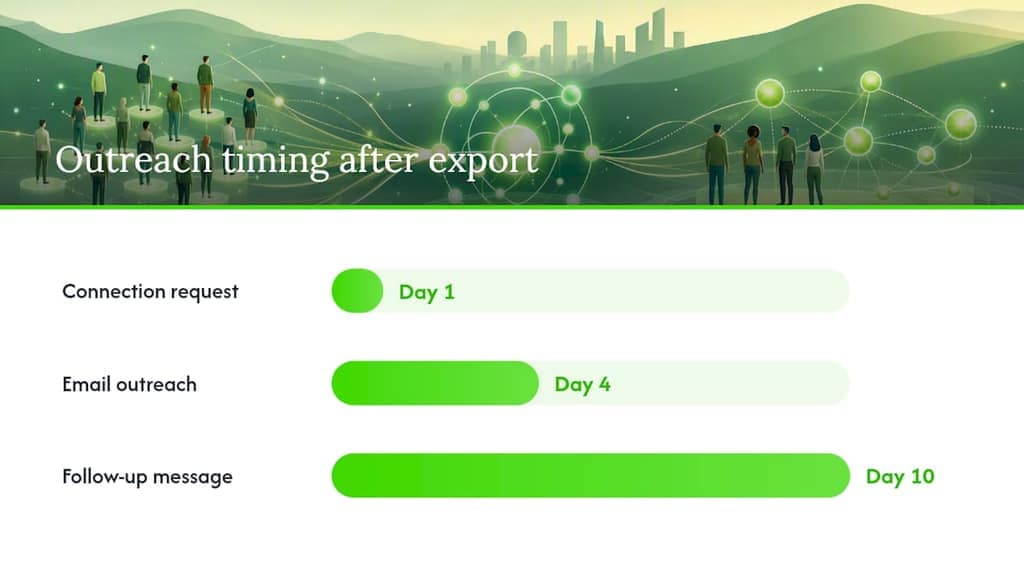
3-step outreach sequence template:
- Day 1 — LinkedIn connection request: Personalized note referencing a specific detail from their profile or recent content. No pitch.
- Day 4 — Email (post-connection or cold): One-sentence value prop tied to their role and a single question. Keep it under 75 words.
- Day 10 — Follow-up email or LinkedIn message: Reference the first touchpoint, add a relevant case study or data point, and include a low-friction CTA (15-minute call, not a demo request).
For teams that want to automate follow-up cadences after import, lead capture automation flows can trigger sequences based on CRM field values like Lead Source or ICP Tier, so the right message goes to the right segment without manual sorting.
Key Takeaways
Native LinkedIn exports give you names and profile URLs, but you need external enrichment for emails and phones — and a read-only browser extension is the safest way to get structured data at scale.
| Point | Details |
|---|---|
| Native exports have field limits | LinkedIn's CSV exports include name, title, company, and profile URL — no emails or phones at any plan tier. |
| Campaign Manager is the exception | Lead Gen Form exports include email if the form collected it — the only native path to email addresses. |
| Read-only extensions lower account risk | Extensions that process data locally and make no outbound server requests carry significantly less risk than cloud scrapers. |
| Enrich by LinkedIn URL, not by scraping | Pass profile URLs to external enrichment services to get verified contact data without additional LinkedIn activity. |
| Mastros LinkedIn Data Exporter | Exports Sales Navigator leads and search results locally to CSV, Excel, or JSON with dedup and pacing built in. |
The case for local processing (and why it actually matters)
Most articles on this topic treat "privacy-first" as a marketing label. It is not. When a browser extension uploads your export data to its own server, that server now holds a list of your prospects, your LinkedIn session behavior, and potentially your cookies. You have no visibility into how that data is stored, shared, or used. For a sales team at a company with any kind of data governance policy, that is a real problem, not a theoretical one.
The read-only, local-processing model solves this in a straightforward way: the extension reads what is already on your screen, structures it, and writes a file to your local machine. Nothing leaves your browser. You can verify this in 30 seconds with DevTools. That transparency is what makes it a defensible choice when someone in legal or IT asks how you are building your prospect lists.
There is also a practical account-safety argument that gets underappreciated. Cloud-based tools that bundle extraction with messaging features create a behavioral signature that LinkedIn's systems are specifically tuned to detect: rapid data reads followed immediately by outbound messages, all from the same session. Separating extraction (read-only extension) from outreach (your CRM or sequencing tool) breaks that pattern. It is a small architectural choice with a meaningful risk reduction.
The teams that run into trouble are usually the ones who picked the tool with the most features, not the one with the right constraints.
Mastros LinkedIn Data Exporter: local processing, no server uploads
If the compliance-first workflow described in this guide is what you need, Mastros LinkedIn Data Exporter is built for exactly that. It runs entirely in your Chrome browser, processes all data locally, and exports Sales Navigator leads, people search results, company pages, and job listings to CSV, Excel, JSON, or JSONL. No data is uploaded to Mastros servers during an export.
Key features: local DOM parsing with no outbound data transfer, visible field preview before export, built-in dedup and pacing controls, and zero messaging or automation capabilities. It is a read-only tool by design.
Quick-start steps:
- Install the Mastros LinkedIn exporter from the Chrome Web Store.
- Open Sales Navigator, run your search or navigate to a saved list.
- Click the Mastros extension icon and preview the fields.
- Export to CSV, verify the file locally, then run enrichment on the LinkedIn URL column.
- Import the enriched CSV to your CRM using the field mapping from the cleanup section above.
Try the free plan to run a small export and confirm the DevTools network tab shows no outbound requests before committing to a paid tier.
Useful sources
- Export LinkedIn Search Results to Excel: Complete Guide
- Every Way to Export LinkedIn and Sales Navigator Data (and When Each One Actually Works) - DEV Community
- LinkedIn → CSV Exporter - Chrome Web Store
- View and download leads, metrics, and analytics for Lead Gen Form ad sets
- Export account and lead information from Sales Navigator
- How to Export Sales Navigator Leads to Excel — Reply.io
- Exporting leads from Linkedin Sales Navigator : r/CRM
FAQ
Can you export a LinkedIn lead list directly?
Yes, but only from saved lists in Sales Navigator or from Campaign Manager Lead Gen Forms. LinkedIn has no native one-click export for arbitrary search results — you must save leads to a list first, then export the list as a CSV.
How do you download leads from LinkedIn Campaign Manager?
Go to Campaign Manager, open your Lead Gen Form ad set, and click Download leads. LinkedIn generates a CSV with the fields your form collected, including email if the form requested it. The official export path is documented in LinkedIn's help center.
Does Sales Navigator export include email addresses?
No. Sales Navigator CSV exports include name, title, company, and LinkedIn profile URL — not emails or phone numbers. To get contact details, pass the exported profile URLs to an external enrichment service.
What is the safest way to export LinkedIn search results to Excel?
Use a read-only browser extension that processes data locally and makes no outbound server requests during export. Verify this by checking the DevTools Network tab during a test run. Export to CSV, then open in Excel. This approach keeps all LinkedIn interaction human-paced and read-only, which carries the lowest account risk of any third-party method.
How often can you export data from LinkedIn?
LinkedIn does not publish a fixed export frequency limit, but large or rapid exports increase detection risk. For Sales Navigator CSV exports, LinkedIn processes the file asynchronously and sends a download link by email, which naturally paces the workflow. For browser extensions, use built-in pacing controls and avoid running continuous bulk exports in a single session.