


The fastest way to export LinkedIn posts data depends on what you need. For a full account archive, request LinkedIn's native "Download your data" file. For per-post engagement metrics in a structured CSV or JSON, a browser extension is the right call. Mastros is one: it lets you export LinkedIn search results to Excel or CSV, posts included, read-only. Here's where to start:
- Full backup: Go to LinkedIn's Download your data page and request your archive. You'll get Shares.csv and Rich_Media.csv in a ZIP delivered by email.
- Per-post analytics: Install a privacy-first Chrome extension, navigate to your
/recent-activity/all/feed, configure depth and delay settings, and run the extraction.
Pro Tip: If your goal is to track engagement trends over time, skip the native archive. It won't give you per-post reaction breakdowns or precise timestamps in a format ready for pivot tables.
Key Takeaways
Browser extensions give you per-post engagement metrics that LinkedIn's native archive simply does not include, making them the right tool for any recurring analytics workflow.
| Point | Details |
|---|---|
| Native archive for backups | LinkedIn's "Download your data" produces Shares.csv and Rich_Media.csv but omits per-post likes, comments, and reactions. |
| Browser tools for analytics | Extensions export PostDate, Likes, Comments, PostURL, and ReactionsBreakdown in CSV, JSON, or XLSX. |
| Two-pass extraction | Preloading LinkedIn's cache before extracting reduces missed posts on dynamically loaded feeds. |
| Privacy-first setup | Use a local-only extension in a dedicated browser profile; never enter credentials into a third-party site. |
| Mastros LinkedIn exporter | Processes data locally in-browser, exports CSV/Excel/JSON, and supports both personal and company page feeds. |
Table of Contents
- How do you request and download LinkedIn's native data archive?
- Why the native archive often isn't enough for per-post analytics
- What can browser tools extract from LinkedIn?
- Step-by-step: export your posts with a Chrome extension
- What does a typical CSV/JSON export schema look like?
- Privacy, security, and LinkedIn ToS: what to check before you export
- Mastros' LinkedIn exporter: a privacy-first option worth knowing
- Native export vs. browser tool: a quick decision guide
- Try Mastros' LinkedIn exporter with no commitment
- Sources
- FAQ
How do you request and download LinkedIn's native data archive?
LinkedIn's official export is the safest starting point, and the steps are straightforward.
- Click Me in the top navigation bar, then go to Settings & Privacy.
- Select Data privacy from the left menu.
- Click Get a copy of your data (also labeled "Download your data" in some account views).
- Choose "Want something in particular? Select the data files you're most interested in" for a smaller, faster export, or select "Download larger data archive" for the complete set including post history.
- Click Request archive. LinkedIn will email you a download link when the file is ready.
The larger archive is what you want for post-level data. According to LinkedIn Help, it includes files like Shares.csv (your post text, timestamps, and share URLs) and Rich_Media.csv (references to images and videos attached to posts). Delivery typically takes a few hours, though it can run longer for accounts with extensive history.
Once downloaded, unzip the archive and open Shares.csv in Excel or Google Sheets. Expect to spend a few minutes cleaning column headers before the data is usable for analysis.
| File | What it contains |
|---|---|
| Shares.csv | Post text, share date, share URL, visibility setting |
| Rich_Media.csv | Media file references linked to posts |
| Connections.csv | Connection list (not post data) |
Why the native archive often isn't enough for per-post analytics
The native export works well for compliance backups. For content analytics, it falls short in several concrete ways.
- Delayed delivery. You request the archive and wait hours. If you need data for a report due today, that timeline doesn't work.
- No per-post engagement metrics. Shares.csv does not include likes, comments, reaction breakdowns, or repost counts. Those numbers simply aren't in the file.
- Aggregated and normalized fields. Timestamps in the native export are often formatted inconsistently, and media references live in a separate file, requiring a manual join.
- No impression data. LinkedIn's native archive omits post-level impressions entirely, even though that metric is visible in your LinkedIn analytics dashboard.
- Inconsistent media links. Rich_Media.csv references files but doesn't always provide direct download URLs for images or video.
Use the native archive when you need a compliance record or a one-time full backup. If you're a content manager tracking weekly engagement, a researcher mapping posting patterns, or a recruiter auditing a company page, a browser tool will get you there faster and with richer fields.
Pro Tip: Open Shares.csv and check the column headers before assuming the data is complete. If you don't see a Likes or Comments column, that's your signal to switch to a browser-based extraction workflow.
What can browser tools extract from LinkedIn?
Browser-based exporters pull structured data directly from the rendered LinkedIn page using your active login session. The result is a file that's ready for analysis without manual joins.
Common export formats: CSV, Excel (.xlsx), JSON, JSONL, and ZIP bundles for media files.
Typical fields available:
- Post text/content
- Precise timestamp (PostDate and RawTime)
- PostURL (direct link to the post)
- Likes and reaction counts
- Comments count
- Reposts/shares count
- Reaction breakdowns (when available)
- Media URLs or bundled media files
- Profile or page name and URL
According to linkpull, browser tools can export posts with impressions, stats, and bundled images, and two-pass extraction improves reliability. Some tools, like serpapps/linkedin-downloader, go further and bulk-download videos as MP4 and images in their source format, organizing saved files into author folders, all while running locally in the browser.
Local processing vs. cloud-based services: A local-only tool processes everything inside your browser tab. Nothing leaves your machine. Cloud-based scrapers route your data through an external server, which introduces privacy risk and potential credential exposure. For most users, local-only is the right default.
Step-by-step: export your posts with a Chrome extension
This workflow applies to any reputable, privacy-first extension.
- Preflight. Update Chrome or Edge to the latest version. Create a dedicated browser profile for LinkedIn work and sign in there. Disable any performance-blocking extensions (ad blockers, script managers) that might interfere with page rendering.
- Install the extension. Add it from the Chrome Web Store. Review the permissions it requests — a local-only tool should not need access to unrelated sites or your clipboard.
- Navigate to the right URL.
- Personal posts:
linkedin.com/in/[your-username]/recent-activity/all/ - Company posts:
linkedin.com/company/[company-name]/posts/?feedView=allThese specific URLs matter. As documented by linkedin-post-scraper-extension, extensions target these paths to access the full post feed rather than a truncated profile view.
- Personal posts:
- Let the page load fully before starting extraction. Scroll down manually a few times to trigger LinkedIn's dynamic loading, then let the feed settle.
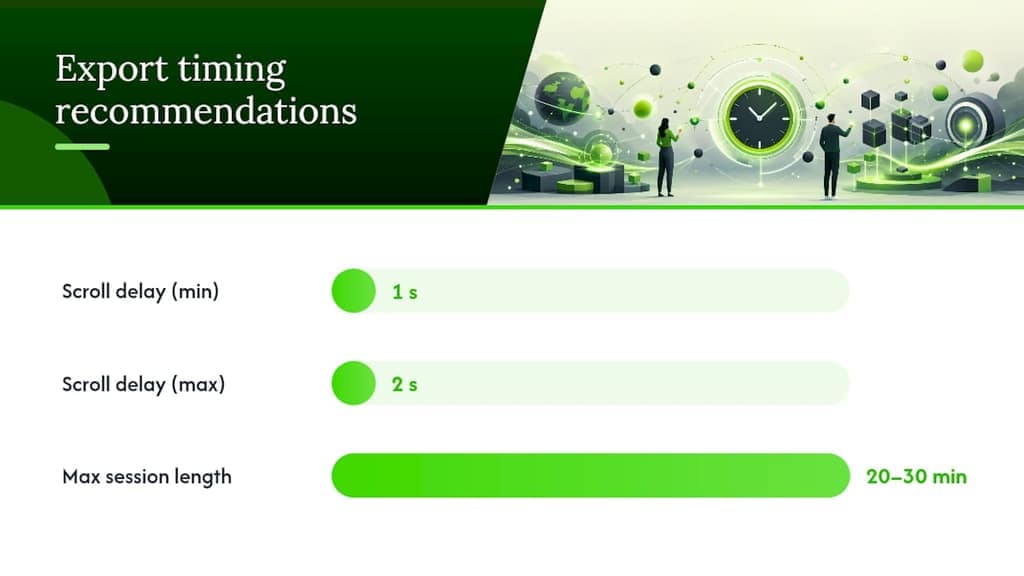
- Configure depth and delay settings. Set a post limit appropriate to your goal (e.g., 200 posts for a quarterly audit). Add a delay of at least 1–2 seconds between scroll steps to avoid triggering LinkedIn's rate limits.
- Start extraction and monitor progress. Watch the extension's status panel. If it stalls, pause and scroll the page manually to load more posts, then resume.
- Download the export file in your preferred format (CSV, JSON, or XLSX).
Verification after export:
- Count the rows in your CSV and compare against the post count visible on your LinkedIn profile.
- Spot-check 3–5 PostURL values by opening them in a browser and confirming the post text matches.
- Check that timestamps are in a consistent format before importing into Sheets or Excel.
Troubleshooting:
- Fewer posts than expected: Scroll the feed manually to the bottom before running the extension. LinkedIn's lazy-loading means unrendered posts won't be captured.
- Company page returns too few posts: Confirm you're using the
/posts/?feedView=allURL. The default company page view often shows only recent activity. - Feed not loading: Refresh the page, wait 30 seconds, and try again in the dedicated browser profile.
Pro Tip: Two-pass extraction, preloading LinkedIn's cache first and then extracting, noticeably reduces missed posts on dynamically loaded feeds. linkpull documents this approach specifically for reliability on large post histories.
What does a typical CSV/JSON export schema look like?
Most extensions produce a schema close to this:
| Column | Description |
|---|---|
| PostDate | Human-readable date (e.g., 2025-03-14) |
| RawTime | Unix timestamp or ISO string |
| ProfileURL | URL of the author's LinkedIn profile or page |
| PageName | Display name of the author or company |
| Content | Full post text |
| Likes | Total like/reaction count |
| Comments | Comment count |
| ReactionsBreakdown | JSON string of reaction types and counts |
| PostURL | Direct link to the post |
| MediaCount | Number of media items attached |
| MediaURLs | Pipe-delimited list of media URLs |
| PostType | Text, image, video, article, document |
A single CSV row looks like this:
PostDate,RawTime,ProfileURL,PageName,Content,Likes,Comments,PostURL,MediaCount,PostType
2025-03-14,1741910400,https://linkedin.com/in/janedoe,Jane Doe,"Excited to share our Q1 results...",142,18,https://linkedin.com/posts/janedoe_q1-results-123456,1,image
Mapping tips:
- Convert RawTime to a datetime column in Sheets using
=EPOCHTODATE()or in Excel with=(A2/86400)+DATE(1970,1,1). - MediaURLs is pipe-delimited (
|). Use "Split text to columns" in Sheets orText to Columnsin Excel to separate them. - Build a pivot table on PostDate and Likes to spot your highest-engagement days at a glance.
Pro Tip: Keep ReactionsBreakdown as a raw JSON string in your master sheet and parse it in a separate tab. That way your pivot tables stay clean and you still have the granular data when you need it.
Privacy, security, and LinkedIn ToS: what to check before you export
Before running any export tool, confirm three things: you own or are authorized to collect the data, the tool processes it locally, and you're not sharing raw exports containing personal identifiers beyond what your use case requires. LinkedIn's User Agreement supports members exporting their own data but restricts automated scraping of other members' data without authorization. Microsoft's official guidance on member data portability covers the principles that govern how LinkedIn member data can be requested and transferred.
Security checklist:
- Run the extension in a dedicated browser profile, not your main one.
- Never enter your LinkedIn credentials into a third-party website or form. A local extension uses your existing session cookie, not a login prompt.
- Inspect the extension's permissions before installing. It should request access only to
linkedin.com, not to all sites. - Prefer extensions that process data locally. Extensions that rely on your active login session and run in-browser avoid sending credentials to external servers, which reduces privacy risk considerably.
Rate limits and account safety: Keep scroll delays at 1–2 seconds minimum. Avoid running continuous extractions for more than 20–30 minutes in a single session. Patterns that mimic bot behavior (rapid, uninterrupted scrolling at machine speed) can trigger LinkedIn's automated detection. Short sessions with natural pauses are safer.
For a deeper look at privacy-first extraction practices, the principles that apply to messaging platforms transfer directly to LinkedIn workflows.
Mastros' LinkedIn exporter: a privacy-first option worth knowing
Mastros builds its LinkedIn exporter as a Chrome extension that runs entirely in your browser. Post content is processed locally and never uploaded to an external server.
Feature highlights:
- Exports to CSV, Excel (.xlsx), and JSON
- Captures post text, timestamps, PostURL, likes, comments, reposts, and media URLs
- Supports personal profiles (
/recent-activity/all/) and company pages (/posts/?feedView=all) - Filters by date range and minimum engagement thresholds
- Two-pass extraction for improved reliability on large feeds
Quick setup:
- Install the Mastros extension from the Chrome Web Store.
- Open LinkedIn in the same browser profile where the extension is active.
- Navigate to
/recent-activity/all/for personal posts or/posts/?feedView=allfor a company page. - Set your filters (date range, minimum likes) and post depth limit.
- Click Extract, wait for the progress indicator to complete, then click Download.
Pricing: Mastros offers a free tier for lower-volume exports. Paid plans unlock higher monthly export quotas and media ZIP downloads. You can start on the free tier to verify the schema fits your workflow before upgrading.
Pro Tip: Run a small test export of 20–30 posts first. Confirm the PostURL values open correctly and the timestamps parse cleanly in your analysis tool before committing to a full extraction.
Native export vs. browser tool: a quick decision guide
The choice usually comes down to three questions: How fast do you need the data? Do you need engagement metrics? And are you exporting your own posts or a company page?
Use LinkedIn's native archive when:
- You need a compliance record or a one-time full backup.
- Delivery time of several hours is acceptable.
- You don't need per-post likes, comments, or reaction data.
Use a browser extension when:
- You need engagement metrics (likes, comments, reposts) per post.
- You're building a recurring reporting workflow.
- You need media files or direct PostURLs for further processing.
Quick role-based guidance: a content manager running weekly reports should default to a browser tool every time. A researcher doing a one-time archive of a public company page should weigh ToS implications carefully and use local-only processing. A recruiter auditing a company's post history benefits from the structured CSV a browser tool produces. A solo creator who just wants a backup of their own posts can start with the native archive and upgrade to a browser tool if they need the engagement columns.
Try Mastros' LinkedIn exporter with no commitment
Mastros gives you a privacy-first way to pull structured post data without routing anything through an external server. The free tier lets you run your first export immediately, so you can check the schema and field coverage before deciding whether to upgrade. Paid plans add higher monthly export volumes and media ZIP downloads for teams that need both metadata and files in one pass. Install the Mastros LinkedIn exporter from the Chrome Web Store, run a test export on your own profile, and see whether the output fits your workflow.
Sources
FAQ
Does LinkedIn's native export include likes and comments per post?
No. LinkedIn's Shares.csv contains post text, timestamps, and share URLs, but not per-post engagement metrics like likes, comments, or reaction breakdowns. A browser extension is required for those fields.
What URLs should I use to export LinkedIn posts data with a Chrome extension?
For personal posts, navigate to linkedin.com/in/[username]/recent-activity/all/. For company pages, use linkedin.com/company/[company-name]/posts/?feedView=all. These paths expose the full post feed that extensions target for extraction.
Is it safe to use a browser extension to export my own LinkedIn posts?
Yes, provided the extension processes data locally in your browser and does not prompt you to enter credentials on a third-party site. Local-only tools use your existing LinkedIn session and never upload post content to external servers.
How long does LinkedIn's native data archive take to arrive?
LinkedIn delivers the archive via email link, typically within a few hours, though accounts with extensive history can take longer. The file arrives as a ZIP containing multiple CSVs.
Can Mastros export company page posts as well as personal posts?
Yes. Mastros' LinkedIn exporter supports both personal profile feeds (/recent-activity/all/) and company page feeds (/posts/?feedView=all), exporting the same structured fields for both.