


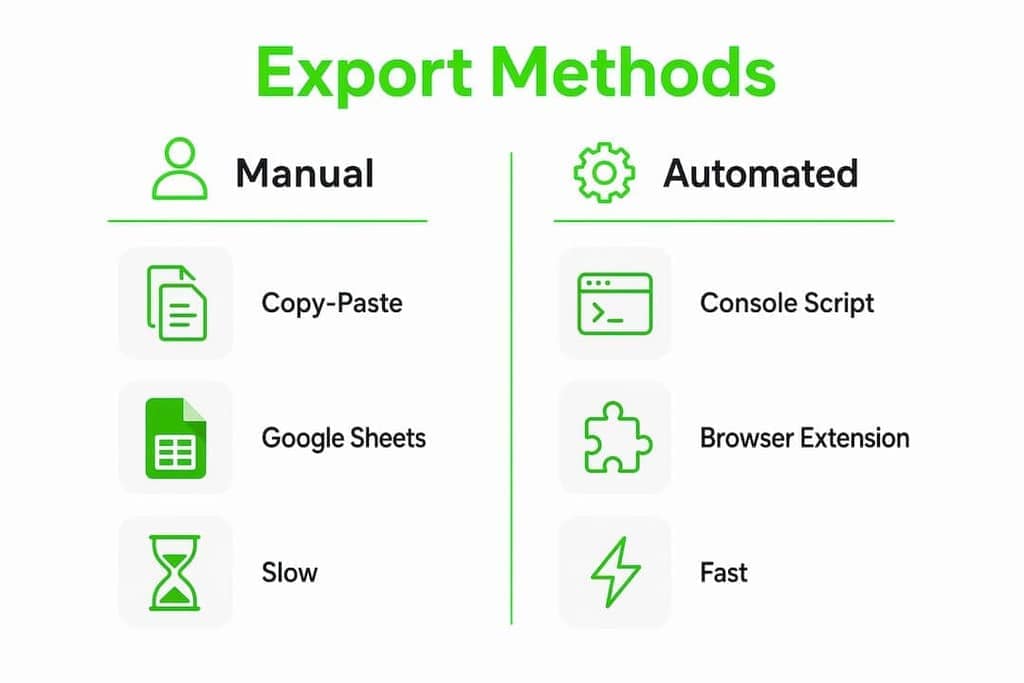
WhatsApp group member export is defined as the process of pulling a participant list from a group and saving it as a structured file, such as CSV, TSV, or Excel, for use in outreach, CRM import, or community management. WhatsApp offers no native export button for group members, so every method covered here is a workaround. The good news: you do not need admin rights to pull the participant list. Four practical approaches exist, ranging from manual copy-paste to browser extensions like Mastros, and each fits a different group size and technical comfort level.
What tools and prerequisites do you need?
Every export method runs through WhatsApp Web, the browser-based version of WhatsApp. You need a modern browser, Chrome or Edge, and your phone nearby to scan the QR code on first login. Beyond that, the tools depend on the method you choose.
Here is what you may need across all four methods:
- WhatsApp Web loaded in Chrome or Edge (required for all methods)
- A spreadsheet app like Microsoft Excel or Google Sheets (for manual and script methods)
- Browser developer console (built into every modern browser, no install needed)
- A browser extension like Mastros for automated, structured exports
- The group's chat export file (for the parsing method, generated inside the WhatsApp mobile app)
One rule applies to every method: the member list panel must be fully loaded and scrolled before you run any extraction. WhatsApp loads members progressively as you scroll. If you skip this step, your export will be incomplete.
Pro Tip: Open the group info panel on WhatsApp Web, scroll slowly to the bottom of the member list, and wait two seconds before starting any extraction. This triggers full DOM loading and prevents partial exports.
No admin permission is required for any of these methods. All export tools work by reading the visible data on WhatsApp Web, which any group member can see.
How to export WhatsApp group members list manually
The manual method works for small groups and requires no tools beyond a browser and a spreadsheet. It is slow for large groups but requires zero technical setup.
- Open WhatsApp Web in Chrome or Edge and navigate to your group.
- Click the group name at the top to open the group info panel.
- Scroll slowly through the entire member list until you reach the bottom.
- Select all visible member names and numbers by clicking and dragging, or use Ctrl+A if the panel allows it.
- Copy the selected text and paste it into a new Excel or Google Sheets document.
- Use the Text to Columns feature in Excel (Data tab > Text to Columns) with a delimiter to separate names from phone numbers into distinct columns.
- Remove duplicates using the Remove Duplicates function under the Data tab.
- Save the file as a CSV for use in CRM tools or outreach platforms.
Manual copy-paste is inefficient and error-prone. It frequently misses unsaved contacts, which appear as phone numbers without names, and those numbers can get lost in messy paste output. For a group of 50 members, this process takes roughly 10–15 minutes. For a group near the 1,024-member limit, close the tab and use a faster method.
Pro Tip: Paste into Google Sheets first, not Excel. Google Sheets handles mixed text and number formatting more gracefully on initial paste, which means less cleanup before you export to CSV.
How to use browser console scripts to extract member data
The browser developer console method is free, fast, and produces a clean TSV file without installing anything. TSV (tab-separated values) is preferred over CSV for WhatsApp exports because it handles phone numbers and international characters without formatting errors that comma-separated files sometimes introduce.
Follow these steps:
- Open WhatsApp Web and navigate to your target group.
- Click the group name to open the group info panel and scroll the member list all the way to the bottom. Do not skip this.
- Press F12 (or right-click anywhere and select "Inspect") to open the browser developer console.
- Click the Console tab inside the developer tools panel.
- Paste a prepared JavaScript snippet that reads the loaded DOM elements and extracts member names, phone numbers, and saved contact status.
- Press Enter to run the script.
- The script generates a downloadable TSV file. Save it to your desktop.
- Open the TSV file in Excel or Google Sheets for further filtering or CRM import.
A few things to watch for:
- Incomplete list warning: If you did not scroll the full member list before running the script, the output will only contain the members WhatsApp loaded. Scroll first, always.
- Console paste block: Some browsers block pasting into the console by default. Type
allow pastingdirectly into the console and press Enter to unlock it. - Script source: Use scripts from trusted, public repositories like the open-source WhatsApp-Contact-Extractor on GitHub. Avoid random scripts from forums.
The console method is the best free option for groups with hundreds of members. It produces structured data with minimal cleanup and keeps everything local on your machine. No data leaves your device during the process, which matters for community managers handling sensitive member lists.
How do browser extensions speed up group member exports?

Browser extensions are the fastest option for admins who export group lists regularly or manage multiple groups. A well-built extension adds an export button directly to the WhatsApp Web interface, so the process takes a few clicks instead of a multi-step console workflow.
Here is what a good extension-based export looks like in practice:
- Install the extension from the Chrome Web Store and pin it to your browser toolbar.
- Open WhatsApp Web and navigate to the group you want to export.
- Scroll the member list panel fully, just as with the console method.
- Click the export button the extension adds to the group info panel.
- Download the resulting CSV or Excel file instantly.
The key difference between extension-based exports and manual methods is how they handle unsaved contacts. Automation tools ensure thorough exports that include unsaved numbers, which manual copy-paste frequently misses. That matters for CRM workflows where every contact counts.
| Feature | Manual copy-paste | Console script | Browser extension |
|---|---|---|---|
| Speed (256 members) | 60+ minutes | 5–10 minutes | 2–5 minutes |
| Requires install | No | No | Yes |
| Output format | Unstructured text | TSV | CSV or Excel |
| Handles unsaved contacts | Often misses them | Yes | Yes |
| Data stays local | Yes | Yes | Depends on extension |
Privacy is the critical variable when choosing an extension. The best extensions process data locally on your device and never send member information to external servers. Mastros, for example, runs entirely in your browser in read-only Web Mode, with no API calls and no data leaving your machine.
Pro Tip: Before installing any extension, check its privacy policy for the phrase "data is processed locally." If the policy is vague or missing, pass on that tool.
How to parse exported WhatsApp chat files for member data
WhatsApp's native "Export Chat" feature generates a text file that contains every message sent in a group, with sender attribution. This method gives you more than a contact list. It gives you a log of active participants with message timestamps and phone numbers, which is useful for analyzing engagement rather than just pulling names.
- Open the WhatsApp mobile app and navigate to your group.
- Tap the group name, scroll down, and select Export Chat (without media to keep the file small).
- Save or share the resulting
_chat.txtfile to your computer. - Open the file in a text editor. Each line follows a pattern like:
[date, time] +1 555 000 1234: message text. - Use Excel's Power Query or a simple text editor with regex find-and-replace to extract the phone number from each line.
- Deduplicate the extracted numbers to get a unique list of members who have sent at least one message.
The limitation here is clear: members who have never sent a message will not appear in the chat log. This method does not replace a full member list export. It complements one by showing you who is actually active. Parsing chat export files provides deeper insight into member engagement, which makes it the right tool for marketers and researchers, not just community managers doing a routine contact pull.
Key Takeaways
Exporting a WhatsApp group members list requires a workaround method since WhatsApp provides no native export feature, but all four methods work without admin rights.
| Point | Details |
|---|---|
| No native export exists | WhatsApp has no built-in export button; every method relies on reading visible data from WhatsApp Web. |
| Scroll before you extract | Always scroll the full member list panel before running any script or extension to avoid incomplete exports. |
| Manual method has real limits | Copy-paste works for small groups but misses unsaved contacts and takes over an hour for large groups. |
| Console scripts are the best free option | A JavaScript snippet in the browser developer console produces a clean TSV file with no install required. |
| Privacy depends on the tool | Choose extensions that process data locally; Mastros runs entirely in your browser with no external data transmission. |
What I actually reach for when exporting group members
My default is the browser console script, and I reach for it almost every time. It requires no install, produces a clean TSV file, and keeps everything on my machine. The two minutes it takes to scroll the member list and paste a script into the console is a fair trade for structured, complete data.
That said, I have learned a few things the hard way. The most common mistake I see is running a script or extension before fully scrolling the member list. People get a partial export, assume the tool is broken, and give up. The tool is fine. The list just was not loaded yet.
For very small groups, say under 30 members, manual copy-paste is genuinely fine. Do not overcomplicate it. Paste into Google Sheets, clean it up in five minutes, and move on.
For admins managing five or more groups regularly, a browser extension is worth the setup time. The time savings compound fast. Just be selective about which extension you trust. I only use tools that are explicit about local data processing. If an extension's privacy policy does not clearly state that member data stays on your device, that is a pass for me.
The chat parsing method is underrated for one specific use case: engagement analysis. If you need to know who actually participates in a group versus who just lurks, parsing the _chat.txt file is the only method that tells you that. No contact list export can do it.
— Elias
Mastros makes WhatsApp group exports faster and private
Group admins and community managers who export member lists regularly need a tool that is fast, clean, and does not put member data at risk.

Mastros is a privacy-first Chrome extension built for exactly this. It runs entirely in your browser on WhatsApp Web in read-only mode, with no API connections and no data sent to external servers. You get a formatted CSV, JSON, or JSONL file of your group members in minutes, including unsaved contacts that manual methods miss. It is built for growth marketers, community managers, and researchers who need reliable exports without the setup overhead of console scripts. Visit Mastros to see how it handles WhatsApp group member exports and what else it can pull from your groups.
FAQ
Can you export WhatsApp group members without being an admin?
Yes. All export methods read the visible data on WhatsApp Web, which any group member can access. No admin rights are required.
How do I export WhatsApp group members to CSV?
Use a browser extension like Mastros or a JavaScript console script on WhatsApp Web. Both output structured files you can open directly in Excel or Google Sheets.
Why is my exported member list incomplete?
The member list panel was not fully scrolled before extraction. Scroll to the bottom of the group info panel and wait two seconds before running any script or extension.
What is the fastest way to export WhatsApp group members?
A browser extension completes the export in 2–5 minutes for groups of any size. Manual copy-paste can exceed 60 minutes for large groups.
Does exporting WhatsApp group members violate WhatsApp's terms?
WhatsApp's terms restrict automated messaging and data scraping at scale. Exporting your own group's visible member list for personal or community management use is a gray area. Always use data responsibly and never use exported lists for unsolicited bulk messaging.