


WhatsApp has no native "Export Group Contacts" button. To export WhatsApp group contacts, your two real options are Chrome extensions that add an export button directly to WhatsApp Web, or a manual process using WhatsApp's built-in chat export feature. Here's the short version:
- Chrome extensions (WA Group Number Exporter, WAExport): fastest path, bulk export in a short time, outputs CSV or Excel with structured fields
- Manual chat export: built into WhatsApp, free, no installs, but only captures members who sent at least one message
- Browser console script: free and open source, works on groups with 1,000+ members, outputs a TSV file
- Common output formats: CSV, XLSX, JSON, TSV
- Key limitation: no method gives you a complete list of silent members without extra manual steps
Table of Contents
- How to export WhatsApp group contacts with Chrome extensions
- Manual export using WhatsApp's chat export feature
- Which file formats should you export to?
- Limitations and privacy considerations worth knowing
- Step-by-step: exporting group contacts with WAExport
- Comparing the top methods for exporting group contacts
- Mastros gives you a privacy-first WhatsApp export tool built for this
- Key Takeaways
How to export WhatsApp group contacts with Chrome extensions
Browser extensions are the fastest, most user-friendly way to pull a complete group contact list. They add an export button directly inside WhatsApp Web's group info panel, so you don't need to parse any files or write code.
Two extensions stand out in 2026: WA Group Number Exporter and WAExport.
WA Group Number Exporter focuses on one job: extracting phone numbers from a WhatsApp Web group and downloading them as a CSV. It reads the group member panel directly, so it captures every visible member, not just those who sent messages. Installation takes under a minute from the Chrome Web Store.

WAExport goes further. Beyond phone numbers, it lets you choose which columns to include in the export: name, phone number, last message date, last message preview, chat name, and group name. You can pull contacts from one group, multiple groups, or your entire WhatsApp account at once. Output options include CSV and Excel-compatible formats, making it a practical fit for CRM imports into tools like HubSpot or Salesforce.
Installation and usage steps
- Open the Chrome Web Store and search for "WA Group Number Exporter" or "WAExport."
- Click Add to Chrome and confirm the installation.
- Go to web.whatsapp.com and scan the QR code to link your account.
- Open the group chat, then click the group name at the top to open Group Info.
- Scroll to the participants section. The extension adds an Export button here.
- Click Export, choose your file format (CSV or Excel), and the file downloads automatically.
Extension comparison
| Export method | Supported formats | Ease of use | Privacy/security | Additional features |
|---|---|---|---|---|
| WA Group Number Exporter | CSV | Very easy | In-browser only, no server upload | Phone number extraction, dedupe |
| WAExport | CSV, Excel | Easy | In-browser only, no server upload | Custom columns, multi-group export, CRM-ready headers |
| Console script (open source) | TSV | Moderate (requires developer console) | In-browser only, open source | Handles 1,000+ members, includes saved/unsaved flag |
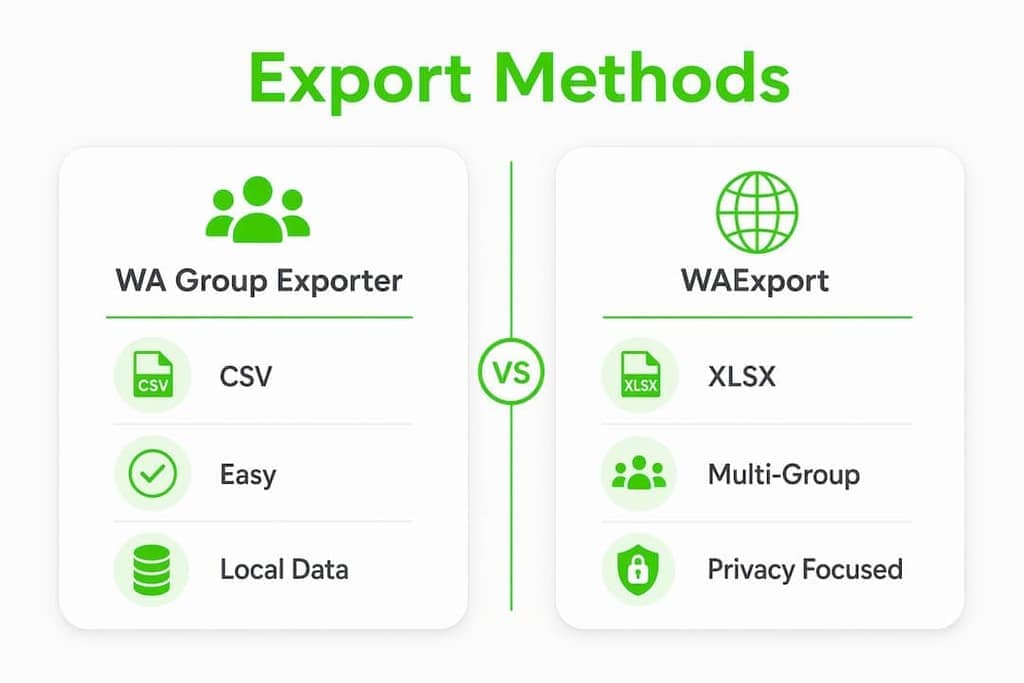
Both extensions carry user ratings on the Chrome Web Store and publish privacy policies. Extensions operating entirely in-browser avoid sending your data to any external server, which is the standard you should hold any tool to before installing it. Exporting contacts via extension typically takes less than 2 minutes for a typical group.
Manual export using WhatsApp's chat export feature
WhatsApp's built-in Export Chat option is free and requires no third-party tools. The catch: it only surfaces members who actually sent a message in the group.
Step-by-step
- Open the group chat on your phone.
- Tap the group name at the top to open Group Info.
- Scroll down and tap Export Chat.
- Choose Without Media (faster, and media files don't contain contact data).
- Save or share the exported
.txtfile to your computer. - Open the file in a text editor. Each line follows the format
[timestamp] sender: message. - The sender field shows a raw phone number for any contact not saved in your phonebook.
- Copy the entire file contents and paste into a spreadsheet. Use Text to Columns (Excel) or a simple find-and-replace to isolate phone numbers.
What this method misses
Silent members, people who joined but never posted, won't appear anywhere in the export file. For a complete list, you need to cross-reference the Group Info member panel manually, or use an extension that reads the panel directly. If a member is saved in your contacts, WhatsApp shows their name instead of their number in the export, which means you'll need to check the Group Info screen to find the raw number for saved contacts you want to include.
Pro Tip: After exporting the chat file, use Excel's Remove Duplicates function on the phone number column. Active groups with long histories will have the same sender appearing hundreds of times.
Which file formats should you export to?
The right format depends on what you're doing with the data afterward.
- CSV: the most portable option. Opens in Excel, Google Sheets, and imports directly into most CRMs. Best default choice for anyone building a contact list for outreach or CRM upload.
- XLSX: native Excel format. Easier for manual editing and formatting, but less portable than CSV for automated imports.
- JSON: preferred for developers passing contact data to an API or building a custom integration. Not useful for spreadsheet-based workflows.
- TSV: tab-delimited files handle international phone numbers and special characters better than CSV, avoiding the comma-conflict issues that can corrupt international numbers. Opens cleanly in Excel and Google Sheets without extra configuration.
For CRM import, structure your CSV with columns like Name, Phone, Group Name, and Last Message Date. That field mapping matches what tools like HubSpot and Salesforce expect, and it saves you from manual column remapping on every import.
Limitations and privacy considerations worth knowing
WhatsApp lacks a native bulk contact export feature by design. That's not an oversight. The restriction exists to limit spam and protect group members from unsolicited outreach.
A few things to keep in mind before you export:
- Incomplete lists from chat export: the manual method only captures members who sent at least one message. Silent members require the Group Info panel or an extension.
- Third-party extension risks: only install extensions that run entirely in-browser and publish a clear privacy policy. An extension that uploads your contact data to a remote server is a red flag.
- Console scripts carry risk too: running arbitrary JavaScript in your browser console can expose your account if the code is malicious. Using a reputable, open-source script you can read line by line is safer than running code from an unknown source.
- Legal considerations: personal use is generally fine. Commercial use, such as marketing to extracted contacts without their consent, can violate data protection laws and WhatsApp's terms of service, and may result in your account being banned.
- Large groups take longer: the console script method has been tested on large groups, but extracting very large groups requires several minutes of scroll time.
Pro Tip: Always choose a tool that processes data locally in your browser. If a tool asks you to upload your contact file to a website, that's your cue to close the tab.
Step-by-step: exporting group contacts with WAExport
WAExport is the most flexible option for anyone managing multiple groups or preparing contacts for CRM import. Here's the full process:
- Search "WAExport" in the Chrome Web Store and click Add to Chrome.
- Go to web.whatsapp.com and log in by scanning the QR code with your phone.
- Click the WAExport icon in your Chrome toolbar to open the extension panel.
- Select Contacts only mode (separate from the chat export mode).
- Choose your source: one specific group, multiple selected groups, or all groups at once.
- Check the columns you want: name, phone number, last message date, last message preview, chat name, group name.
- Choose CSV or Excel as your output format.
- Click Download. The file saves to your default downloads folder.
- Open the file in Excel or Google Sheets. For CRM import, use your CRM's field-mapping tool to align the column headers with the expected fields.
For lead generation from WhatsApp groups, the multi-group export mode is particularly useful. You can pull contacts across several groups in one pass and deduplicate before importing. If you're collecting contacts at events or from community groups, pairing this with a structured contact collection process gives you cleaner data from the start.
Comparing the top methods for exporting group contacts
| Export method | Supported formats | Ease of use | Privacy/security | Additional features |
|---|---|---|---|---|
| WAExport (Chrome extension) | CSV, Excel | Easy | In-browser, no server upload | Multi-group, custom columns, CRM-ready |
| WA Group Number Exporter | CSV | Very easy | In-browser, no server upload | Fast single-group extraction |
| WhatsApp chat export (manual) | TXT (requires parsing) | Moderate | Native WhatsApp, no third party | No install needed, free |
| Console script (open source) | TSV | Technical | In-browser, open source | Handles 1,000+ members, saved/unsaved flag |
For small groups, the manual chat export is perfectly adequate. For anything larger, or if you need structured fields for a CRM, an extension saves significant time. The console script is the right call for very large groups where extensions hit their limits, provided you're comfortable opening the developer console. For regular exports across multiple groups, WAExport's multi-group mode is the most practical option available in 2026.
Mastros gives you a privacy-first WhatsApp export tool built for this
If you want a dedicated, privacy-first Chrome extension for exporting WhatsApp group contacts without any of your data leaving your device, Mastros is built exactly for that.

The Mastros WhatsApp scraper runs entirely in your browser in read-only Web Mode. No API connections, no automation, no messaging on your behalf. It exports group members, chat messages, and recent contacts from WhatsApp Web directly to CSV, JSON, or JSONL. Every contact stays on your machine. It's built for growth marketers, community managers, and researchers who need clean, structured exports they can actually use, without handing their data to a third-party server.

Try Mastros and run your first group export in minutes.
Key Takeaways
Browser extensions are the fastest and most complete method to export WhatsApp group contacts in 2026, capturing all members including those who never sent a message.
| Point | Details |
|---|---|
| No native export button | WhatsApp has no built-in bulk contact export; third-party tools or manual methods are necessary. |
| Extensions beat manual export | Chrome extensions like WAExport capture all group members, not just those who sent messages. |
| File format matters | Use CSV for CRM import, TSV for international numbers, JSON for developer integrations. |
| Privacy check required | Only use tools that run entirely in-browser and publish a clear privacy policy. |
| Mastros for structured exports | Mastros exports WhatsApp group members to CSV, JSON, or JSONL with all data staying on your device. |