



Run four methods on any exported WhatsApp chat and you'll get most of the value: descriptive stats, activity heatmaps, response-time distribution, and NLP sentiment or topic analysis. Start with the export itself, since everything downstream depends on it. The Mastros WhatsApp extension exports chat messages from WhatsApp Web to CSV, JSON or JSONL if you want structured rows instead of a .txt file.
Here's what to do right now:
- Export the chat as .txt or .zip using Without Media so you get a clean text file to parse.
- Run a browser-based or local tool on that file instead of uploading it anywhere. Keep the data on your machine.
- Start with descriptive stats and a heatmap first. They're fast, and they usually surface the most obvious patterns before you touch anything NLP-related.
This is a privacy-first process by design. Every method below can run locally, and none of them require sending your conversations to a third-party server.
Key Takeaways
Reliable WhatsApp chat analysis depends on clean preprocessing first, then a layered method stack of descriptive stats, heatmaps, network analysis, and sentiment scoring, run locally rather than uploaded to a server.
| Point | Details |
|---|---|
| Export without media first | Use "Without Media" on export to get a lightweight, text-only .txt or .zip file ready for parsing. |
| Preprocessing determines accuracy | Handle multiple timestamp formats, language labels, and stop-word lists before running any analysis. |
| Start with descriptive stats | Message counts, heatmaps, and response-time distributions surface the clearest patterns fastest. |
| Network analysis reveals hidden influence | Centrality measures often show a different "most important" participant than raw message counts do. |
| Scale determines your tool | Browser analyzers suit small chats; switch to Python streaming tools past roughly 30,000 messages. |
Table of Contents
- How to Export a WhatsApp Chat for Analysis
- The Core Analysis Methods and What Each One Reveals
- Cleaning the Data: Preprocessing That Matters
- Choosing Between Browser Tools and Python Libraries
- How Mastros Turns WhatsApp Web Into Analysis-Ready Files
- A Reproducible Workflow You Can Run Today
- Mapping Who Talks to Whom: Network Analysis
- Reading the Rhythm of a Conversation Over Time
- Comparing the Main Tool Categories
- Making Sense of Media Without Opening the Files
- The Method Most People Skip, and Shouldn't
- Sources
- FAQ
How to Export a WhatsApp Chat for Analysis
Getting a usable file takes under a minute on either platform, but the steps differ slightly between iOS and Android.
- Open the individual or group chat you want to analyze.
- Tap the contact name or group name at the top to open Chat Info (Android) or Contact/Group Info (iOS).
- Scroll down and tap Export Chat.
- Choose Without Media. This produces a text-only file instead of a bulky archive full of photos and videos.
- Save or share the resulting .txt file, or the .zip if your device bundles it that way.
Choosing "Without Media" matters because it keeps the export lightweight and fast to parse. Attachments still show up as placeholders like <Media omitted>, which lets you count how many photos, videos, or voice notes were sent without storing the files themselves, according to the Analytics Vidhya walkthrough on building an end-to-end chat analysis project.
Once you have the file, open it in a plain text editor before running any tool. Check that timestamps look consistent and note whether your device labels dates in a language other than English. That detail affects parsing later.
Pro Tip: If you're exporting a group chat with a lot of history, test the export on a smaller date range first. It's faster to catch formatting issues in a 500-message sample than in a 40,000-message file.
The Core Analysis Methods and What Each One Reveals
Once you have a clean export, the question becomes which methods to run first. A handful of techniques cover almost every practical use case.
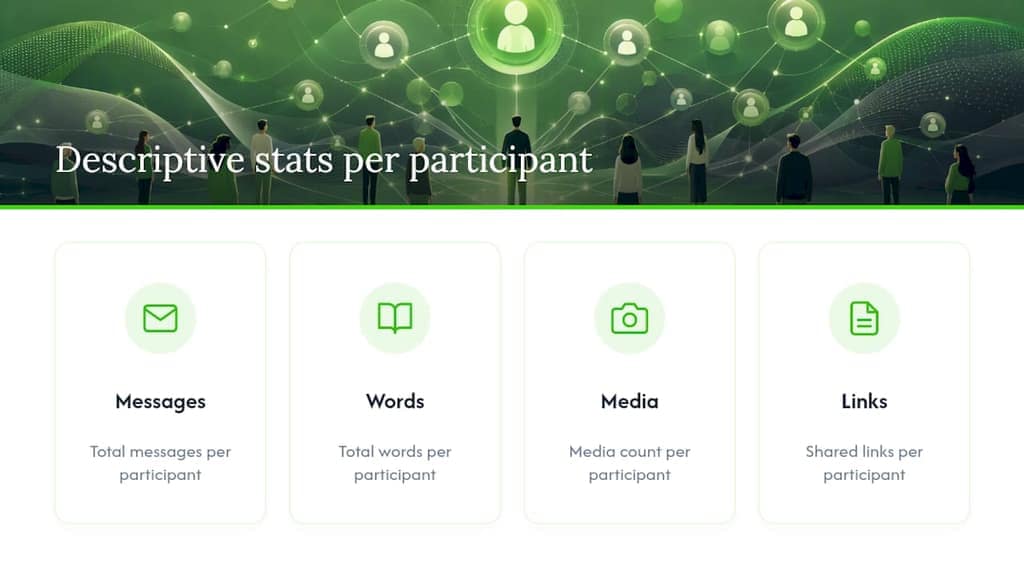
Descriptive statistics come first because they're cheap to compute and immediately orienting: total messages, words, media count, and shared links, broken down per participant. This is where you find out who actually drives a conversation versus who just reacts to it.
Time-based views come next. Hourly heatmaps show when a group is most active, weekday breakdowns reveal whether a chat is a weekend thing or a workday thing, and monthly timelines show growth or decline in engagement over months.
Interaction metrics get more specific: response-time distribution, who tends to start conversations, and streaks or silences that hint at relationship dynamics.
Content analysis covers the fun stuff: most-used words, an emoji leaderboard, and word clouds that make patterns visually obvious in seconds.
NLP methods round it out. Sentiment analysis using lexicons like VADER or TextBlob scores each message's emotional tone, while simple topic modeling with NMF (non-negative matrix factorization) clusters messages into recurring themes. Combined, these techniques can surface more than 50 distinct metrics from a single chat export, from vocabulary richness to message streaks.
One caveat: sentiment lexicons trained on English struggle with slang, sarcasm, and code-switched languages like Hinglish, so treat sentiment scores as directional signals, not verdicts.
Cleaning the Data: Preprocessing That Matters
Preprocessing is the step people skip, and it's the one that determines whether your results mean anything.
- Build a flexible timestamp parser. WhatsApp's export format varies by device locale and region, so a regex pattern that works on a US iPhone export might fail on an Android export from another country. A robust parser checks several timestamp formats rather than assuming one.
- Handle system-language labels. Strings like "This message was deleted" appear in the device's own language, and a naive English-only parser will misread them as regular messages.
- Normalize or strip media placeholders. Decide whether
<Media omitted>counts as a message for volume stats, and be consistent about it. - Apply language-specific stop-word lists. A chat mixing English and Hindi (Hinglish) needs stop-word handling for both, plus attention to transliteration variants, per the analysis of multilingual WhatsApp parsing.
- Extract emojis separately from text. Emoji carry sentiment signal that word-based tokenizers usually miss entirely.
Skipping this stage is the single biggest reason chat-analysis projects produce misleading numbers, according to a research note on preprocessing for behavioral chat data.
Pro Tip: If your export is under 10,000 messages, in-browser parsing handles all of this fine. Past that, especially with multiple languages, switch to Python with Pandas for reliability.
Choosing Between Browser Tools and Python Libraries
The right tool depends on chat size, your comfort with code, and how much control you want over the output.
- Browser-based analyzers process the .txt file directly in your browser tab and return heatmaps, leaderboards, and word clouds within seconds. They're the fastest option for a single small-to-medium chat and require zero setup.
- Open-source Python projects like the gauravmeena0708/whatsapp-analyzer repository generate full HTML reports per user, complete with sentiment trend charts, network graphs, and word clouds, plus built-in anonymization utilities for when you need to share results.
- CLI and streaming tools such as henryhale/whatsapp-analyzer are built for scale. They matter once a chat crosses into tens of thousands of messages, where in-browser JavaScript parsing starts to lag or crash outright.
- HTML report builders are the right call when you want a shareable, static output. Programmatic Pandas workflows are the right call when you want to slice the data yourself or feed it into something else.
Whichever route you choose, the privacy checklist stays the same: prefer local processing, anonymize identifying names before you share anything, and confirm the tool isn't quietly caching your chat content in browser storage or sending it anywhere.
How Mastros Turns WhatsApp Web Into Analysis-Ready Files
A lot of parsing headaches disappear before you even open a chat-analysis tool, if you start from a structured export instead of a raw .txt file.
Mastros' WhatsApp extension runs in read-only Web Mode directly on WhatsApp Web, and pulls chat messages, group members, and recent contacts into structured CSV, JSON, or JSONL files. It doesn't send messages, automate anything, or touch the WhatsApp API, which keeps it firmly on the read-only side of the line.
That structure matters more than it sounds like it should:
- A CSV or JSON export drops straight into Pandas or a visualization tool without you writing a single regex pattern.
- Fields like sender, timestamp, and message body arrive pre-separated, which sidesteps most of the parsing errors that come from wrestling with raw text.
- Growth marketers pulling engagement data, community managers auditing group activity, and researchers building datasets all skip the cleanup stage entirely.
If you'd rather compare export options first, this rundown of WhatsApp chat exporter alternatives walks through how different browser tools handle the "Without Media" export before analysis.
A Reproducible Workflow You Can Run Today
Here's the sequence that gets you from raw export to real insight without wasted steps.
- Export the chat with Without Media selected.
- Quick-parse the file, applying your regex patterns for timestamps and stripping media placeholders.
- Run descriptive stats and an activity heatmap first. These are fast and immediately readable.
- Run sentiment analysis with VADER or TextBlob on the cleaned message text.
- Save results as a CSV for further work or an HTML report if you want something shareable.
For the components: Pandas handles the dataframe work, urlextract pulls shared links, the wordcloud and emoji libraries cover content visualization, and VADER or TextBlob (or a simpler sentiment lexicon) covers tone scoring. This is roughly the pipeline described in the Analytics Vidhya deployment walkthrough, which loads a .txt export into a dataframe, runs analytic functions, and renders results through an interactive dashboard.
Expect chats with fewer messages to finish in under a minute in-browser. For very large chats, switch to Python streaming or chunked Pandas reads to avoid memory issues.
Pro Tip: Before sharing any output outside your own use, strip or hash participant names. Raw exports identify real people, and an anonymized version protects them without losing the analytical value.
Mapping Who Talks to Whom: Network Analysis
Descriptive stats tell you who sends the most messages. Network analysis tells you who actually holds the conversation together, and those aren't always the same person.

Treat each participant as a node and each reply or mention as an edge, and you can build an interaction graph for any group chat. The resulting structure often reveals a small core of highly connected members surrounded by a larger group that mostly responds rather than initiates.
Centrality measures quantify this. Degree centrality counts how many distinct people someone interacts with. Betweenness centrality flags the person who connects otherwise separate subgroups, the friend who bridges the "work" cluster and the "personal" cluster in one big family group, for instance. Eigenvector centrality weighs influence by who you're connected to, not just how many connections you have.
This matters most in larger groups, community chats, or professional networks where influence isn't obvious from message counts alone. A person who sends fewer messages but consistently triggers replies from multiple other members often scores higher on betweenness than the most talkative person in the chat.
Building these graphs by hand is tedious, but open-source analyzers increasingly bundle relationship-graph generation as a standard output alongside heatmaps and word clouds. If your goal is understanding group dynamics rather than individual behavior, this is the method that actually answers the question, not raw message counts.
The catch: graph-based methods need clean sender attribution across every message, which means your preprocessing step has to be airtight before you attempt this analysis.
Reading the Rhythm of a Conversation Over Time
A monthly timeline tells you a chat was active in March. It doesn't tell you whether that activity was one three-day burst or a steady daily trickle, and that distinction changes what the data means.

Conversation bursts are short windows of unusually dense messaging, often triggered by an event, an argument, or shared news. Detecting them requires looking at message density per hour or per day rather than aggregate monthly totals, since a burst can hide inside an otherwise quiet month.
Thread continuity measures whether a topic gets resolved in one exchange or drags across multiple sessions separated by hours or days. Chats with high continuity tend to feel more like ongoing conversations; chats with low continuity read more like a stream of disconnected pings.
Day-to-day change detection compares consecutive days or weeks to flag shifts in tone or volume. A sudden sentiment drop across several consecutive days is a more meaningful signal than a single negative message, since it points to a pattern rather than a mood.
Together, these three angles turn a flat activity heatmap into something closer to a behavioral timeline. You start to see not just when people talk, but how conversations actually unfold, whether they resolve quickly or linger, and whether silence in a chat means nothing happened or something changed. This is where response-time distribution data becomes genuinely useful: a rising median response time over several weeks often precedes a broader drop in group engagement, well before total message counts show any decline.
Comparing the Main Tool Categories
No single tool wins on every dimension, so the right pick depends on what you're optimizing for: speed, depth, or scale.
Single-page browser analyzers win on speed. Upload a .txt file, get a heatmap and word cloud back in seconds, no installation required. Their limitation is depth: most stop at descriptive stats and basic visualizations, without network graphs or configurable sentiment models.
Streamlit-based Python apps, including the whatsapp-analyzer project, sit in the middle. They require Python installed locally but reward that setup with per-user HTML reports, sentiment trend charts, network graphs, and built-in anonymization tools. The tradeoff is a slightly steeper learning curve for anyone who has never run a Python script.
CLI and streaming-focused tools like henryhale/whatsapp-analyzer trade convenience for scale. They're built to handle exports that would choke a browser tab, using chunked or streaming reads instead of loading everything into memory at once. That makes them the right choice for community managers or researchers working with archives well past 30,000 messages.
Custom Pandas workflows offer the most control but the least hand-holding. If you want to answer a specific question the pre-built tools don't cover, like correlating sentiment with a specific external event, writing your own analysis script in Pandas is usually faster than trying to bend an existing dashboard to fit.
Making Sense of Media Without Opening the Files
Choosing "Without Media" on export doesn't mean media data disappears entirely. It means the files themselves aren't included, but the metadata around them still lands in your text export.
Every photo, video, or voice note appears as a placeholder line, typically <Media omitted>, complete with its original timestamp and sender name intact. That's enough to build a surprisingly useful secondary analysis layer without ever touching an actual image or video file.
You can count media volume per participant, the same way you'd count text messages, and compare it against their text-message ratio. Someone who sends mostly photos and few words shows up very differently in a raw message count than in a media-adjusted one. You can also chart media-sharing patterns over time, since a burst of shared photos on a specific date often correlates with an event the text alone won't reveal.
The parsing challenge is recognizing these placeholder strings correctly, since they change wording depending on device language and WhatsApp version, according to the koftezz WhatsApp chat analyzer project. A parser looking only for the English phrase will silently miscount media in exports from a non-English device, undercounting attachments and skewing per-user totals.
If accurate media metadata matters for your analysis, budget extra preprocessing time for locale-specific placeholder detection. It's a small detail, but it's exactly the kind of thing that quietly breaks otherwise solid analysis pipelines.
The Method Most People Skip, and Shouldn't
The conventional advice on WhatsApp chat analysis treats sentiment analysis as the goal. It isn't. It's the easiest method to demo and the least reliable one on its own, because lexicon-based sentiment scoring genuinely struggles with sarcasm, mixed languages, and the shorthand people use with close friends.
What the research on this topic actually supports is a different priority order. Descriptive stats and activity heatmaps deliver the clearest signal fastest, because they're counting things rather than interpreting them. Response-time distribution and network centrality measures come next, since they reveal relationship dynamics that raw message counts hide entirely. Sentiment and topic modeling belong at the end, as a layer on top of a dataset you've already cleaned and understood structurally.
The bigger failure point isn't choice of method. It's skipping preprocessing to get to the interesting part faster. A parser that mishandles one timestamp format or one language's stop words will quietly corrupt every metric downstream of it, no matter how sophisticated the NLP model is on top.
If you take one thing from this, take this: spend more time on the export and cleanup than on the analysis itself. The interesting findings only mean something if the data underneath them is actually clean.
— Elias
Sources
- WhatsApp Chat Analysis: End-to-End Data Analysis Project with Deployment
- gauravmeena0708/whatsapp-analyzer
- henryhale/whatsapp-analyzer
- Research note on preprocessing importance for chat analysis
FAQ
How can I analyze a WhatsApp chat?
Export the chat as .txt using "Without Media," then run a local tool that produces descriptive stats, activity heatmaps, response-time distribution, and sentiment analysis on the cleaned text.
What are the hidden tricks in WhatsApp?
Most so-called hidden tricks are really just underused native features, like exporting a chat without media for backup or analysis, or checking read receipts and last-seen settings for privacy control. There's no secret analytics dashboard built into the app itself.
Can you tell if someone is monitoring your WhatsApp?
WhatsApp doesn't notify you if someone views your chats through legitimate export or backup features, since exporting your own chat is a built-in function, not a hack. Signs of unauthorized access typically involve account activity you didn't initiate, like WhatsApp Web sessions you don't recognize under Linked Devices.
How do I check a chat partner's deleted WhatsApp messages?
WhatsApp does not provide a built-in way to recover messages someone else deleted, and third-party claims promising this are generally unreliable or unsafe. Exported chats only capture messages that were present and visible at export time, including a placeholder for messages already marked "deleted" before export.
Do I need coding skills to run these analysis methods?
No. Browser-based analyzers handle descriptive stats, heatmaps, and word clouds without any code, though Python tools like whatsapp-analyzer offer deeper reports for those comfortable with a script.