



TL;DR:
- Using a browser-local exporter like Mastros safely captures LinkedIn sales leads without risking account suspension. Enriching profile URLs through waterfall methods yields high email and phone coverage, making data CRM-ready. Segment large lists and verify data to ensure compliance, accuracy, and optimal outreach results.
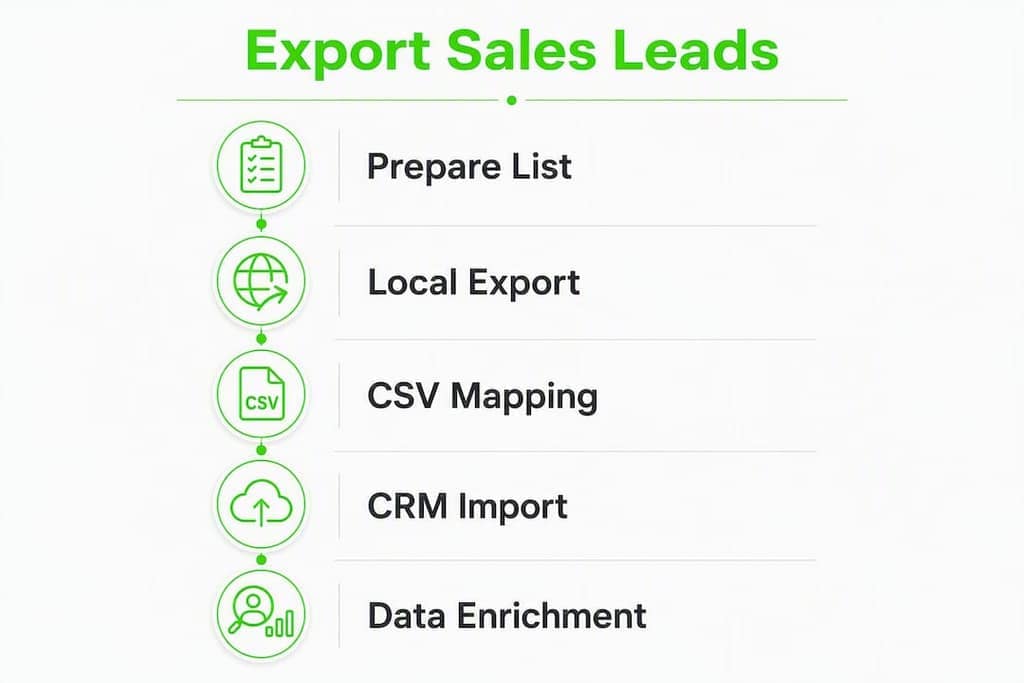
The fastest compliant way to export Sales Navigator leads is to save your prospects into a Lead List, run a browser-local exporter (such as Mastros) to pull a clean CSV, then feed those LinkedIn profile URLs into a waterfall enrichment service before importing into your CRM. That three-step sequence gives you names, titles, companies, and profile URLs immediately, then verified work emails and direct-dial phones after enrichment, with minimal risk to your LinkedIn account. The Sales Navigator export in Mastros saves leads to Excel or CSV, read-only.
What you get from this workflow:
- Names, job titles, company names, and LinkedIn profile URLs in the exported CSV
- Verified work emails and phone numbers after enrichment with high coverage rates on matched URLs
- A CRM-ready file in CSV, Excel, or JSON format, ready to import without manual cleanup
When this is the right call: your team needs speed, wants to keep account risk low, and needs full control over where the data lives. If you are running a large-scale outbound program or have a CRM sync already configured, the sections below cover those paths too.
Pro Tip: Save your leads into a named Lead List before exporting. Exporting from a saved list is faster, more reliable, and gives you a clean record set to dedupe against later.
Table of Contents
- Why a privacy-first local exporter is the recommended default
- What are your other options for getting lead data out of Sales Navigator?
- How to export Sales Navigator leads: three practical workflows
- How to import your CSV into Salesforce, HubSpot, or Pipedrive
- Turn profile URLs into deliverable emails and phones
- How do you stay compliant when exporting from Sales Navigator?
- Troubleshooting: large lists, missing fields, and the 2,500-results cap
- How the recommendations in this guide were selected
- Key Takeaways
- The workflow most sales teams skip is the one that matters most
- Mastros LinkedIn exporter: local, private, and CRM-ready
- Useful sources
- FAQ
Why a privacy-first local exporter is the recommended default
Browser-local exporters like Mastros work by running entirely inside your browser tab. The extension reads the Sales Navigator page your session has already loaded, structures the visible data, and writes it to a local file on your machine. No data passes through an external server. No third party holds your LinkedIn session cookie.
Why that matters operationally:
- Your LinkedIn credentials never leave your browser, so the risk profile is fundamentally different from tools that require you to hand over login details or install a server-side agent
- The exported file is yours immediately: a clean CSV or JSON sitting in your downloads folder, not locked inside a vendor dashboard
- Format options (CSV, Excel, JSON) map directly to what Salesforce, HubSpot, and Pipedrive expect on import
- You control the export pace, which means you can throttle large lists and avoid triggering LinkedIn's automated detection
The main trade-off is practical: local processing requires an active browser session, so you cannot queue a 10,000-lead export and walk away. For most sales teams running lists under 2,500 leads per query (the platform's hard cap anyway), that is not a real constraint. Heavy users on larger programs may need to split exports across sessions or consider a plan with higher quotas.
Pro Tip: Test on a 50–100 lead subset first. Confirm the CSV columns map cleanly to your CRM before running the full list. That's a 10-minute check that saves an hour of cleanup.

What are your other options for getting lead data out of Sales Navigator?
LinkedIn does not offer a universal "Export to CSV" button for Sales Navigator searches. Native bulk export is limited and often tied to higher-tier plan features and CRM integrations. Here are the legitimate alternatives, ranked by compliance risk:
LinkedIn data archive download. Go to Settings & Privacy > Data Privacy > Get a copy of your data, select "Saved Leads and Accounts," and request the file. LinkedIn sends a CSV within a few hours. Fields included: full name, job title, company name, date saved, and LinkedIn profile URL. Fields excluded: email, phone, message history, engagement data. Zero account risk, but the data is thin.
Native CRM sync (Salesforce or HubSpot). Available on Advanced and Advanced Plus plans, this is LinkedIn's intended bulk-export path and the lowest-risk route at scale. It pushes names, titles, company, and profile URLs into CRM records. You then export from the CRM side. Still no emails or phones, so enrichment is required.
Browser-local exporter (Mastros). Runs in your browser session, exports to CSV/JSON locally. Covered in detail above and in the walkthrough below.
Server-side scrapers. Some services run scrapes from their own infrastructure, meaning they do not use your LinkedIn session cookie. That reduces account risk compared with session-reusing browser extensions, but these tools typically charge per profile and still require careful rate configuration. Cost models vary by vendor.
Manual profile-by-profile capture. Lowest scale, highest accuracy when paired with enrichment. Practical only for high-value accounts where you are building a very targeted list of 20–50 contacts.
Quick trade-off summary:
| Method | Data completeness | Account risk | Cost profile | CRM import ease |
|---|---|---|---|---|
| LinkedIn data archive | Low (no email/phone) | None | Free | Moderate (limited fields) |
| Native CRM sync | Low (no email/phone) | None | Plan-gated | High (direct push) |
| Local browser exporter | Medium (URL + profile fields) | Low | Subscription | High (CSV/JSON presets) |
| Server-side scraper | Medium to high | Low to medium | Per-profile credits | Varies |
| Manual capture | High (with enrichment) | None | Time cost | Manual |
How to export Sales Navigator leads: three practical workflows
Workflow A: Browser-local exporter (Mastros)
- In Sales Navigator, build your search and save the results to a named Lead List.
- Install the Mastros LinkedIn exporter extension from the Chrome Web Store.
- Open your Lead List in Sales Navigator. The extension panel activates automatically.
- Select your export format (CSV for CRM import, JSON for data pipelines).
- Click Export. The file downloads directly to your machine.
- Open the CSV and verify the columns:
First Name,Last Name,Job Title,Company,LinkedIn URL,Location. If any column is blank for more than 10% of rows, check that the Lead List loaded fully before exporting.
Workflow B: LinkedIn data archive
- Go to LinkedIn > Settings & Privacy > Data Privacy > Get a copy of your data.
- Select "Saved Leads and Accounts" (and optionally "Connections" for your network).
- Click Request archive. LinkedIn emails you a download link, typically within a few hours.
- Download and unzip. The relevant file is usually named
SavedLeads.csvor similar. - The CSV contains: full name, job title, company, date saved, LinkedIn profile URL. No emails or phones.
Pro Tip: The archive export is the safest possible method. Use it as a baseline list, then run enrichment on the profile URLs to fill in contact details.
Workflow C: CRM sync route (Salesforce / HubSpot)
- In Sales Navigator, navigate to the CRM Settings panel (requires Advanced or Advanced Plus plan).
- Connect your Salesforce or HubSpot account via OAuth.
- Save leads to a Lead List, then use the "Sync to CRM" action to push records.
- In Salesforce: records appear as Leads or Contacts depending on your mapping. Export from Salesforce Reports using a custom Lead report filtered by
Lead Source = LinkedIn. - In HubSpot: synced contacts appear under Contacts. Export via Contacts > Export, selecting the relevant list.
CSV column sample and field comparison:
| Field | LinkedIn archive CSV | CRM sync (post-export) | Notes |
|---|---|---|---|
| First Name | ✓ | ✓ | |
| Last Name | ✓ | ✓ | |
| Job Title | ✓ | ✓ | |
| Company Name | ✓ | ✓ | |
| LinkedIn Profile URL | ✓ | ✓ | Key enrichment anchor |
| ✗ | ✗ | Requires enrichment | |
| Phone | ✗ | ✗ | Requires enrichment |
| Date Saved | ✓ | Varies | |
| Location | Partial | Partial |
Before enrichment, run two quick checks: confirm every LinkedIn URL follows the https://www.linkedin.com/in/[handle] format (a simple regex catches malformed entries), and check the CSV encoding is UTF-8 to avoid character corruption in names with accents or special characters.
How to import your CSV into Salesforce, HubSpot, or Pipedrive
Clean field mapping before import prevents the most common CRM headaches: duplicate records, broken relationships, and missing source attribution.

Standard field mapping:
| CSV column | Salesforce field | HubSpot property | Pipedrive field |
|---|---|---|---|
| First Name | First Name | First Name | First Name |
| Last Name | Last Name | Last Name | Last Name |
| Job Title | Title | Job Title | Job Title |
| Company Name | Company | Company Name | Organization |
| LinkedIn Profile URL | LinkedIn URL (custom) | LinkedIn Bio URL | LinkedIn (custom) |
| Phone | Phone | Phone Number | Phone |
Salesforce tips:
- Import as Lead objects unless the company already exists in your CRM as an Account, in which case import as Contact.
- Create a custom picklist value
LinkedIn Sales Navigatorunder theLead Sourcefield before importing. This lets you filter and report on LinkedIn-sourced pipeline later. - Required fields for Lead import: Last Name and Company. Map both or the import will fail.
HubSpot tips:
- HubSpot dedupes on email by default. If email is missing (common before enrichment), add LinkedIn Profile URL as a secondary unique identifier via a custom contact property.
- Create a custom property called
LinkedIn Source(single-line text) and map it to a static value likeSales Navigator Exportduring import. This preserves source attribution even after enrichment overwrites other fields.
Deduplication workflow:
- Before import: sort the CSV by LinkedIn URL and remove exact duplicates. A quick Excel formula (
=COUNTIF($E:$E,E2)>1) flags rows with repeated profile URLs. - At import time: use your CRM's built-in merge rules (email match in HubSpot, email + name match in Salesforce).
- Post-import: run a duplicate check report filtered by company + last name within 30 days of import. Most CRMs surface these in a native duplicate management view.
Turn profile URLs into deliverable emails and phones
The LinkedIn profile URL is the most reliable anchor for enrichment. Name-plus-company lookups produce more false-positive matches because names are not unique. A URL points to exactly one person.
Waterfall enrichment, step by step:
- Export your CSV with LinkedIn profile URLs as the primary identifier.
- Submit the URL list to your first enrichment provider (corporate directory or proprietary B2B data partner). Collect all matched records.
- Pass unmatched URLs to a second provider. Repeat with a third if needed.
- Merge results: for each URL, keep the highest-confidence match across providers.
- Run verification on every returned email: syntax check, DNS/MX record check, and SMTP mailbox handshake. For phones, run a line-type check to distinguish mobile from VoIP or landline.
Coverage varies by provider, region and seniority, so measure it on your own list: run a 50–100 lead sample through the waterfall and count verified emails and phones before committing the full export. Because enrichment works from the profile URL and never queries LinkedIn, it adds no LinkedIn account risk.
Coverage reality check: those figures represent well-matched, English-language B2B profiles in active industries. Coverage drops for niche verticals, non-US markets, and profiles with minimal public data. Plan for up to 94% email and 85% phone coverage as an upper bound, with 70–80% as a realistic working baseline.
Guides consistently stress triple-verification for emails (syntax, DNS/MX, SMTP handshake) and line-type checks for phones. Skipping verification is the fastest way to damage your sender reputation and burn through a domain.
How do you stay compliant when exporting from Sales Navigator?
The key distinction is between scraping (automated simulation of user browsing at scale, often without a legitimate session) and exporting (using saved lists, official data downloads, or CRM syncs). LinkedIn's automated detection focuses on behavioral signals: rapid profile visits, high-frequency requests, and extension-driven actions tied to your authenticated session.
Browser extensions that reuse your logged-in session send many fast, automated requests signed by your authenticated cookie. LinkedIn can detect that pattern and throttle or flag the account. The risk is real and worth taking seriously.
Safe practices:
- Prefer local exporters that read already-loaded page data rather than firing new requests
- If you use a server-side tool, confirm it runs on its own infrastructure and does not require your session cookie
- Throttle exports: avoid running large exports during peak hours or in rapid succession
- Split searches that approach the 2,500-lead cap by geography, seniority level, industry, or Boolean refinements, then merge the resulting CSVs
- Never grant a third-party tool full account access when a read-only or session-free option exists
One legal note: when storing exported B2B contact data, follow your company's privacy policy and applicable US data-handling rules. Keep only the fields you need for outreach, document your data sources, and maintain an audit log of when data was collected and from where.
Pro Tip: The operational distinction between session-reusing and session-free methods is the single most important compliance variable. When in doubt, choose the method that does not touch your LinkedIn cookie.
Troubleshooting: large lists, missing fields, and the 2,500-results cap
Sales Navigator enforces a hard cap of approximately 2,500 leads per search query (100 pages × 25 results). Account searches cap lower, around 1,000. If your target list is larger, you need to segment.
Splitting large searches:
- Filter by US state or metro area and run one export per region
- Filter by seniority level (Director, VP, C-Suite as separate queries)
- Filter by industry vertical or company headcount band
- Use Boolean refinements on job title keywords to split a broad search into narrower slices
- After exporting each segment, merge the CSVs and dedupe on LinkedIn URL
Fixing malformed fields:
- Missing LinkedIn URLs: check whether the profile was private or restricted at export time. Enrichment tools can sometimes recover contact info for restricted profiles without querying LinkedIn directly.
- Malformed URLs: a quick regex (
^https://www\.linkedin\.com/in/[a-zA-Z0-9\-]+/?$) flags anything that does not match the standard format. Fix or remove those rows before enrichment. - Encoding issues: open the CSV in a text editor and confirm the first line reads
sep=,or that the BOM is UTF-8. Excel sometimes saves as Windows-1252, which corrupts accented characters.
Practical troubleshooting checklist:
- CSV encoding: UTF-8 with BOM for Excel compatibility
- Duplicate profile IDs: dedupe on LinkedIn URL before and after merge
- CRM import row limits: HubSpot's standard import handles up to 1,048,576 rows; Salesforce Data Import Wizard caps at 50,000 records per file (use Data Loader for larger sets)
- Enrichment quota exhaustion: track credits per provider and set a daily cap to avoid burning your monthly allowance on a single list
Pro Tip: Run a 100-row test import into your CRM before committing the full list. Catch field-mapping errors and encoding problems at small scale, not after 2,000 records have created duplicate contacts.
How the recommendations in this guide were selected
The workflows and tool recommendations here were evaluated against six criteria: data completeness (fields exported), account risk, speed and setup time, cost per profile, CRM import friendliness, and enrichment coverage.
Evaluation criteria applied:
- Data completeness: which fields does each method return natively, and what requires enrichment?
- Account risk: does the method reuse an authenticated LinkedIn session, and at what request frequency?
- Speed and setup time: how long from zero to a CRM-ready file for a 500-lead list?
- Cost per profile: free, subscription-based, or per-credit?
- CRM import friendliness: does the output format match Salesforce, HubSpot, or Pipedrive import expectations without manual transformation?
- Enrichment coverage: what email and phone hit rates are realistic for a well-matched B2B list?
The LinkedIn 2,500-result cap comes from LinkedIn's own search behavior. Proprietary CRM mapping edge cases (custom objects, multi-instance orgs) were not tested; those depend on each buyer's specific CRM configuration and are outside the scope of this guide.
Key Takeaways
Exporting Sales Navigator leads safely requires a browser-local exporter, a waterfall enrichment step on LinkedIn profile URLs, and clean field mapping before CRM import.
| Point | Details |
|---|---|
| Use a local exporter first | A browser-local tool like Mastros exports a clean CSV without uploading your session data to an external server. |
| Profile URL is the enrichment anchor | LinkedIn profile URLs produce more accurate enrichment matches than name-plus-company lookups. |
| Waterfall enrichment delivers results | URL-first waterfall enrichment reports up to 94% email and 85% phone coverage on matched profiles. |
| Split searches over the platform's standard lead cap; segment by region, seniority, or industry and merge the CSVs. | |
| Mastros is the recommended starting point | Mastros runs locally in your browser, exports CSV/Excel/JSON, and keeps your LinkedIn session private throughout. |
The workflow most sales teams skip is the one that matters most
Most guides focus on the export step and treat enrichment as an afterthought. That's backwards. The export is a 10-minute task. The enrichment step is where your list either becomes a pipeline or becomes a spreadsheet that sits in a folder.
The teams that consistently get the best results from Sales Navigator are not the ones with the most sophisticated scraping setup. They are the ones who treat the LinkedIn profile URL as a starting point, not a destination. They export cleanly, enrich systematically, verify before sending, and import with proper source attribution so they can actually measure what LinkedIn-sourced pipeline is worth.
The privacy-first, browser-local approach is not just a compliance hedge. It is operationally cleaner. Your data stays on your machine, your session stays safe, and you are not dependent on a vendor's infrastructure or data retention policy. For teams that care about deliverability and long-term account health, that is the right architecture.
The enrichment coverage numbers (up to 94% email, 85% phone on matched URLs) are real, but they are ceiling figures. Build your program around up to 94% email and 85% phone coverage as the upper bound, with 70–80% as a working baseline so you will never be caught short on a campaign launch.
Mastros LinkedIn exporter: local, private, and CRM-ready
If you want a tool that runs the workflow described in this guide without any server-side risk, the Mastros LinkedIn & Sales Navigator exporter is the direct answer. It runs entirely in your Chrome browser, reads your active Sales Navigator session, and writes a structured CSV, Excel, or JSON file to your local machine. Nothing leaves your browser except the file you download.
The export formats are built for CRM import: column headers match standard Salesforce and HubSpot field names, and the LinkedIn profile URL column is always included as the enrichment anchor. A free tier lets you test on a small list before committing to a paid plan. Paid tiers unlock higher monthly export quotas for teams running larger programs.
Start with a 50–100 lead subset, confirm the field mapping in your CRM, then scale. Visit the Mastros LinkedIn exporter page to install the extension and run your first export today.
Useful sources
These are the primary references used to verify workflows, platform limits, and enrichment coverage claims in this guide:
- How to Export Sales Navigator Leads to Excel (The Bricks) — practical detail on how browser extensions interact with authenticated LinkedIn sessions and what triggers automated detection.
- LinkedIn & Sales Navigator Data Exporter (Mastros) — product documentation for the browser-local exporter recommended throughout this guide, including supported formats and CRM presets.
FAQ
Does Sales Navigator have a native CSV export button?
No. LinkedIn does not offer a universal one-click CSV export for Sales Navigator searches. Your options are the LinkedIn data archive, native CRM sync (plan-gated), or a third-party exporter.
What fields does the LinkedIn data archive export include?
The archive CSV includes full name, job title, company name, date saved, and LinkedIn profile URL. It excludes email addresses, phone numbers, and message history.
How do I export more than 2,500 Sales Navigator leads?
Split your search into smaller segments using filters like geography, seniority, or industry, export each segment separately, then merge and dedupe the resulting CSVs on LinkedIn profile URL.
Is using a browser extension to export Sales Navigator leads against LinkedIn's terms?
Extensions that reuse your authenticated session and fire rapid automated requests carry real account risk. The safest approach is a browser-local exporter that reads already-loaded page data without sending new high-frequency requests, or LinkedIn's own data archive and CRM sync options.
Can Mastros export Sales Navigator leads without uploading my data to a server?
Yes. Mastros runs entirely in your browser and writes the exported file directly to your local machine. Your LinkedIn session data and exported records never pass through an external server.