


A Telegram recent contacts export takes one of two routes. In Telegram Desktop, open Settings → Advanced → Export Telegram Data, tick Contacts, choose JSON and convert result.json to CSV or VCF locally. Or open Telegram Web and run the Mastros Telegram extension, which reads your chat list and saves names, usernames and last messages to CSV, JSON or Excel in one run.
The fastest reliable way to export your recent Telegram contacts is through Telegram Desktop: go to Settings → Advanced → Export Telegram Data, select the Contacts list, choose machine-readable JSON, and convert the output locally to CSV or VCF. The whole process takes under ten minutes.
Here's the short version:
- Export: Open Telegram Desktop, go to Settings → Advanced → Export Telegram Data, check Contacts list, select JSON format, and start the export.
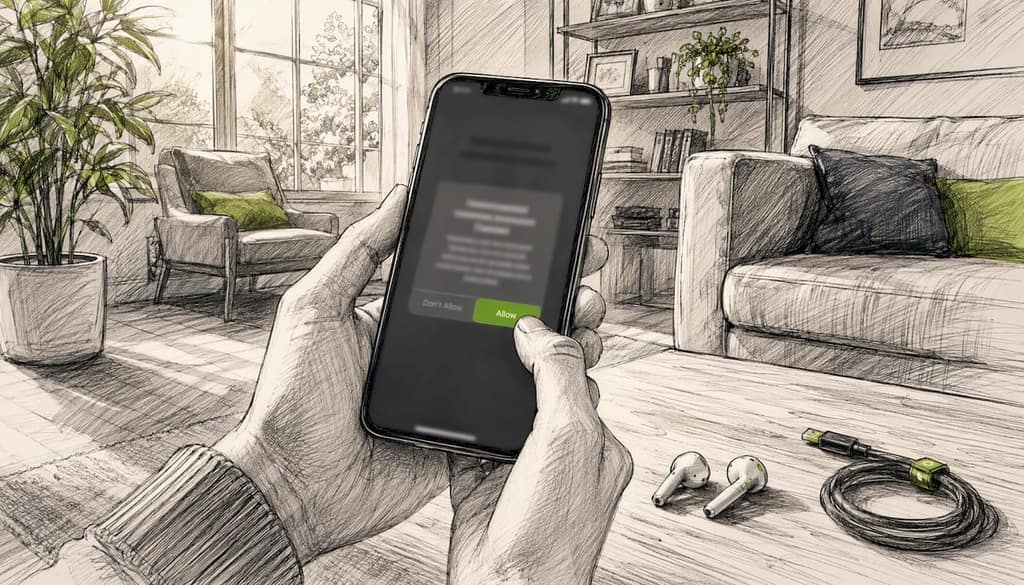
- Approve: Telegram sends an official in-app message you must confirm on your phone or another logged-in device before the export completes.
- Convert: Run a local converter (tg-contacts or TeleExport) on the resulting
result.jsonfile to produce a CSV or VCF. - Import: Load the CSV into Google Contacts at contacts.google.com, or import the VCF directly on Android or iOS.
Pro Tip: Always choose machine-readable JSON over HTML. JSON is cleaner to parse, works with every major converter, and preserves all contact fields including phone numbers, timestamps, and vCard paths. Keep the entire export folder intact — you may need result.json again if the import needs a second pass.
Key Takeaways
The most reliable path for a Telegram recent contacts export is Telegram Desktop's JSON export converted locally with tg-contacts or TeleExport, then imported into Google Contacts or directly onto your device.
| Point | Details |
|---|---|
| Official export path | Use Telegram Desktop: Settings → Advanced → Export Telegram Data, select Contacts, choose JSON. |
| Approve in-app | The export won't complete until you tap Allow on the official Telegram message in your mobile app. |
| Convert locally | Run tg-contacts or TeleExport on result.json to produce a clean, deduplicated CSV or VCF. |
| Recovery fallback | Use the Takeout API (contacts.getSaved) for programmatic recovery when Desktop export returns incomplete results. |
| Mastros extension | Use Mastros for a GUI-based, local-processing alternative when Desktop isn't available or you need group exports too. |
Table of Contents
- How to export recent contacts from Telegram Desktop
- Convert Telegram's JSON into phone-ready CSV or VCF
- How to import the generated CSV or VCF into Google Contacts, Android, and iOS
- When exports fail or contacts are missing: recovery methods
- Common problems and fixes after export or import
- Mastros: a privacy-first browser exporter for recent contacts
- Why Desktop export plus local conversion is the workflow I trust
- Mastros makes local Telegram contact export simple
- Sources
- FAQ
How to export recent contacts from Telegram Desktop
Telegram Desktop is the only official client that exposes the full export flow. Telegram Web and most third-party app managers do not offer it, so if you've been trying to export from a browser tab, that's why nothing showed up.
The path is: Settings → Advanced → Export Telegram Data. In the export dialog, check Contacts list and uncheck everything else unless you want a full account backup. Then pick your format.
JSON vs. HTML: which format to choose
| Format | Best for | Converter support | Notes |
|---|---|---|---|
| Machine-readable JSON | Conversion to CSV/VCF, automation | tg-contacts, TeleExport, custom scripts | Recommended |
| HTML | Human reading only | Limited | Harder to parse reliably |
JSON is the right call for almost every use case. The Telegram export schema documents that the contacts object includes first_name, last_name, phone_number, date (ISO 8601), date_unixtime, and contact_vcard paths — all of which converters need to produce clean output.
The approval step (don't skip this)
After you click Export, Telegram sends an official message from the Telegram account to your app. You must open that message on your phone or any other logged-in device and tap Allow. The export will not complete until you do. Once approved, Telegram Desktop downloads the files into a folder it names something like Telegram Desktop/DataExport_YYYY-MM-DD. Inside, you'll find result.json (your contacts data) and export_results.html (a human-readable summary).
Convert Telegram's JSON into phone-ready CSV or VCF
Raw JSON isn't something you can drop into Google Contacts. You need a converter that maps Telegram's fields to standard contact formats, normalizes phone numbers, and removes duplicates. Three tools handle this well.
Recommended local converters
tg-contacts (CLI) — A Python command-line utility available on PyPI. It reads
result.json, normalizes phone numbers (converting00prefixes to+), deduplicates by normalized number, and writes a CSV or VCF. After a run, it reports total input, written contacts, and duplicates removed — so you know exactly what made it through.TeleExport — A community script/executable on GitHub. Place
result.jsonnext to the TeleExport executable and run it. No configuration needed for a basic export; it outputs both CSV and VCF in the same folder.ExportTelegramContacts — A GitHub project that uses your Telegram
api_idandapi_hash(registered at my.telegram.org) for richer exports, including profile pictures and fuller vCard fields. More setup, but useful when you need complete contact profiles.
Example commands
For tg-contacts, install via pip and run:
pip install tg-contacts
tg-contacts result.json --format vcf --country +1
The --country flag prepends your country code to numbers that lack one. Swap vcf for csv if you're heading to Google Contacts.
For TeleExport, just place result.json in the same directory as the executable and double-click (Windows) or run:
./TeleExport
What the output tells you
A typical tg-contacts run reports something like: Total input: 312 / Written: 298 / Duplicates removed: 14. That summary matters. If "written" is significantly lower than "input," check whether contacts were saved without phone numbers — a common issue covered in the troubleshooting section below.
Security note: Run every converter locally. Uploading your exported result.json to an online converter hands a third party your full contact list, including names and phone numbers of people who never consented to that.
How to import the generated CSV or VCF into Google Contacts, Android, and iOS
Getting the file onto your phone is the last step, and each platform handles it slightly differently.
- Google Contacts (recommended for Android users): Go to contacts.google.com, click the menu icon, select Import, and upload your CSV or VCF. Google Contacts syncs automatically to any Android device signed into the same account. After import, give it a few minutes to propagate.
- Android direct import: Copy the VCF file to your phone (via USB, Google Drive, or email attachment). Open the Contacts app, tap the menu, and choose Import from VCF file. Some Android skins label this differently, but the option is always under Settings or the three-dot menu.
- iOS / iCloud: iCloud handles VCF natively. Email the VCF to yourself, open it on your iPhone, and tap Add All Contacts. Alternatively, upload it to iCloud.com → Contacts → gear icon → Import vCard. CSV files usually need to be converted to VCF first on iOS — use a free tool like the Contacts CSV to VCF converter or run tg-contacts with
--format vcffrom the start.
Import checklist before you begin:
- Back up your existing contacts first (export from Google Contacts or iCloud before importing anything new).
- Confirm phone numbers have country codes — a number without
+1or+44may not match or dial correctly. - After import, refresh sync settings on your phone (toggle Contacts sync off and back on in your account settings) to force an immediate update.
When exports fail or contacts are missing: recovery methods
Missing contacts after an export usually come down to one of four causes: contact sync was disabled in Telegram's privacy settings, the contact was saved as a username only (no phone number attached), the contact was deleted from your phone's local address book, or the export ran before Telegram finished syncing from the cloud.
Why recent contacts disappear
Telegram stores contacts in two places: your device's local address book (synced into Telegram) and Telegram's own cloud. If you disabled Settings → Privacy & Security → Contacts → Sync Contacts, Telegram stops pulling from your phone. Contacts added after that point may exist only as Telegram usernames with no phone number in the export.
Telegram's export schema includes a
frequent_contactsobject alongside the maincontactslist. This field captures people you've messaged recently, even if they aren't formally saved as contacts — making it a useful recovery source for numbers you interacted with but never explicitly saved.
Programmatic recovery: Takeout API and contacts.getSaved
For developers or advanced users, the Telegram Takeout API (account.initTakeoutSession) is the most complete programmatic route. It accepts flags for contacts, message_users, and files, and returns the full saved contact list in a controlled session. The contacts.getSaved method works within a takeout session and retrieves every saved contact, including those not synced to a local address book.
These methods avoid brittle HTML parsing and work well for repeatable backups. They do require handling large numeric IDs with 64-bit-safe types and proper pagination for large contact lists.
Practical fallback steps
If Desktop export returns fewer contacts than expected: check Privacy & Security → Contacts sync, re-enable it, wait a few minutes, then re-export. Also check other logged-in devices — Telegram Desktop on a second machine may have a more complete local cache. If Desktop isn't available at all, a local browser exporter (covered in the next section) can fill the gap.
Common problems and fixes after export or import
Most issues fall into a short list, and each has a direct fix.
- Phone numbers in scientific notation in Excel: Excel converts long numeric strings like
+14155552671into1.41556E+12. Fix this by formatting the column as Text before pasting, or use the formula=TEXT(A1,"0")to restore the full number. Opening the CSV in Google Sheets avoids this entirely. - Missing country codes: If your contacts show numbers like
07911123456instead of+447911123456, re-run tg-contacts with the--country +44flag (replace with your country code). Most converters support this flag. - Duplicate contacts after import: Run the converter with its dedupe flag first. If duplicates still appear in Google Contacts, use the Merge & fix tool at contacts.google.com — it detects and merges near-identical entries automatically.
- Partial records (name but no phone): These contacts were saved in Telegram as usernames only. The export schema won't include a
phone_numberfield for them. No converter can recover a number that was never stored — you'll need to ask those contacts directly. - Export stalls or never completes: The approval message is almost always the cause. Open Telegram on your phone, find the message from the official Telegram account, and tap Allow. The Desktop client resumes immediately.
Pro Tip: Before running any converter, make a copy of your original result.json and store it somewhere safe. If the conversion produces unexpected results, you can re-run with different flags without re-doing the entire Desktop export.
Pro Tip: If you're importing into Google Contacts and the sync doesn't reflect on your phone within five minutes, go to your phone's account settings, tap your Google account, and toggle Contacts sync off and back on.
Mastros: a privacy-first browser exporter for recent contacts
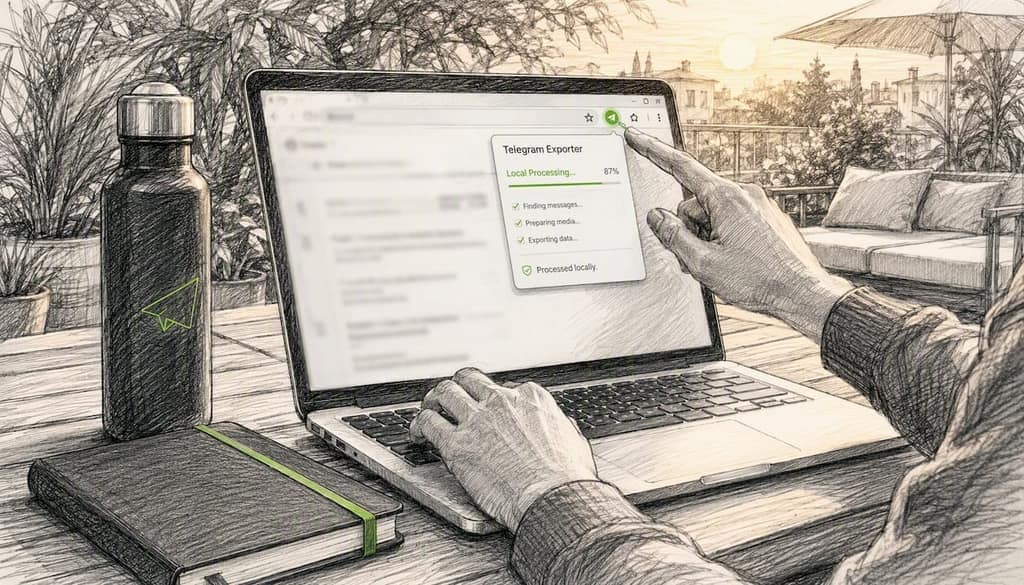
If Telegram Desktop isn't available, or you'd rather skip the command-line entirely, Mastros is a Chrome extension built for exactly this situation. It runs directly in your browser on Telegram Web, processes everything locally, and exports recent contacts to CSV, JSON, or JSONL without uploading your data to any external server.
Mastros processes your contact data entirely inside your browser. Nothing leaves your machine unless you choose to move the file yourself — which is the right approach when you're handling a list of real people's phone numbers and names.
The same extension also exports group members and mutual groups alongside recent contacts, with no API credentials to set up. That's useful when you need more than just a contact list — for example, when managing a community or running outreach across multiple groups.
When to choose Mastros over the Desktop route: when you're on a machine where installing Telegram Desktop isn't practical, when you want a GUI-based flow with no terminal commands, or when you need group member exports in the same session as contact exports. The output files are already structured for import — though you should still confirm phone normalization and run a dedupe pass before loading into Google Contacts.
For a deeper look at alternative export methods and how they compare on privacy and completeness, the Mastros blog covers the tradeoffs in detail.
Why Desktop export plus local conversion is the workflow I trust
The Desktop export path is official, auditable, and requires your explicit approval — that approval step isn't friction, it's a meaningful security check that prevents unauthorized exports. Pair it with a local converter like tg-contacts and you get a clean, phone-ready file without your data ever touching a third-party server.
Browser exporters like Mastros are genuinely useful when Desktop isn't an option, and they're well-suited for users who want a GUI. The tradeoff is that you're working through Telegram Web, which has its own session limits and occasionally shows fewer contacts than the Desktop client's local cache. Neither approach is wrong — the right one depends on your setup and how comfortable you are with a terminal.
For power users who need repeatable, automated backups, the Takeout API is the cleanest long-term solution. It's more setup upfront, but it's the only method that scales reliably across large contact lists and supports scheduled exports.
Mastros makes local Telegram contact export simple
The Desktop export plus converter workflow works well, but it requires a PC, a terminal, and a few manual steps. Mastros cuts that down to a browser extension you install once.
The Mastros Telegram exporter runs inside Chrome on Telegram Web, exports recent contacts to CSV, JSON, or JSONL, and processes everything locally in your browser. Your contact data never reaches Mastros servers. The same extension exports group members and mutual groups too, with no API credentials needed.
It's the better fit when you want a GUI-based flow, when Desktop isn't available, or when you need contact and group exports together. Install the extension, open Telegram Web, and run your first export in under two minutes.
Sources
- Telegram Data Export Schema
- tg-contacts — PyPI
- How to Export and Sync Telegram Contacts - TechWiser
- TeleExport — GitHub
FAQ
How do I export my Telegram contact list?
Open Telegram Desktop, go to Settings → Advanced → Export Telegram Data, check Contacts list, select machine-readable JSON, and approve the official in-app message on your phone. The export folder contains result.json, which you convert to CSV or VCF with a tool like tg-contacts.
Will the other person know if I export a Telegram chat or contacts?
No. Telegram does not notify other users when you export your own contact list or chat history. The export is a local operation on your account data only.
How do I find old or missing contacts on Telegram?
Check Settings → Privacy & Security → Contacts and confirm sync is enabled. Re-enable it if it was off, wait a few minutes, then re-export from Desktop. The frequent_contacts field in the export schema also captures people you've messaged recently, even if they weren't formally saved.
How do I export all my contacts at once?
Use Telegram Desktop's Export Telegram Data with JSON format — it exports your full saved contact list in a single file. For a programmatic full export, the Takeout API with the contacts flag set retrieves every saved contact in one session.
When should I use Mastros instead of Telegram Desktop?
Mastros is the better choice when Telegram Desktop isn't available on your machine, when you want a GUI-based flow with no terminal commands, or when you need recent contacts and group member exports in the same session.