


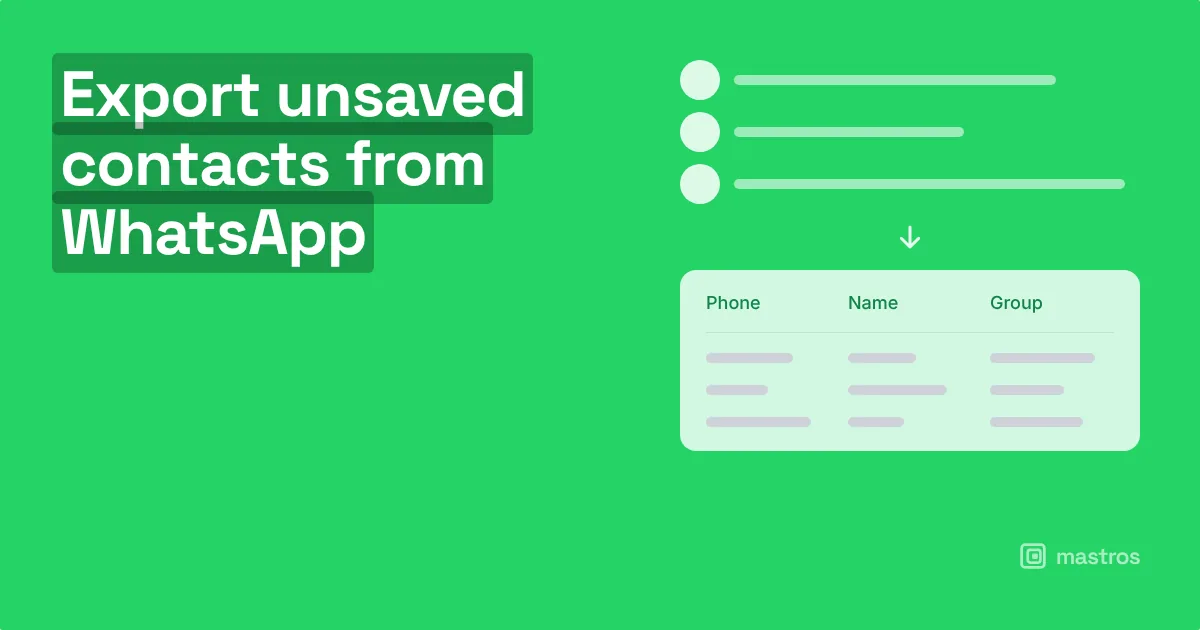
Unsaved WhatsApp contacts can be exported from a group without adding them to your phone. The fastest way is Mastros's WhatsApp contacts export: open the group in WhatsApp Web, choose Group Members, press save, and every member, saved or not, is written to a CSV that opens in Excel or Google Sheets, with nothing uploaded anywhere. See Export WhatsApp contacts to Excel or CSV. Below is what WhatsApp lets you do on the phone, and where it stops.
WhatsApp has no native bulk-export feature for contacts, group members, or unsaved phone numbers. That's why workarounds exist, and why choosing the right one matters.
Your three real options at a glance:
- Browser extension on WhatsApp Web (Mastros WhatsApp Scraper): fastest, exports CSV/JSON/JSONL locally, free tier available with paid volume tiers
- Export Chat → parse
_chat.txt: reliable no-extension fallback, extracts raw phone numbers from exported text files, works on Android and iPhone - Save to phone → export via Google Contacts or iCloud: best for small lists under 30 contacts, no tools required
Table of Contents
- How to export unsaved WhatsApp contacts with a browser extension
- How to parse unsaved numbers from an exported
_chat.txtfile - How to save small lists to your phone and export via Google Contacts
- How to clean, dedupe, and import your exported contact files
- What you need to know about privacy, security, and WhatsApp's policies
- Troubleshooting common issues when exporting unsaved contacts
- Key Takeaways
- Why local processing matters more than most guides admit
- Mastros WhatsApp Scraper: privacy-first contact export for WhatsApp Web
- Sources and further reading
How to export unsaved WhatsApp contacts with a browser extension
This is the recommended route. A privacy-first extension reads the visible WhatsApp Web DOM in read-only mode, collects unsaved numbers, deduplicates them, and writes a file directly to your downloads folder. Nothing touches a server.
Install and configure
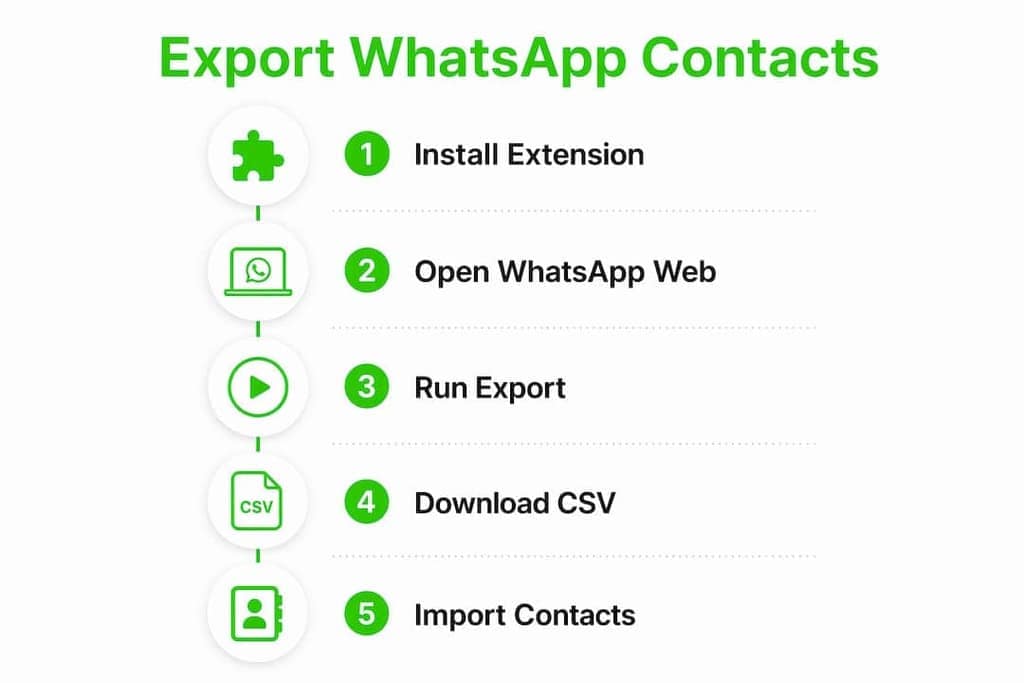
- Open the Chrome Web Store and install the Mastros WhatsApp Scraper extension. It works on Chrome and Edge.
- Go to web.whatsapp.com and log in by scanning the QR code with your phone.
- Click the extension icon in your browser toolbar. A draggable overlay appears on top of the WhatsApp Web chat list.
- Select your source: Chat list, Group, or Label (WhatsApp Business label mode requires a Business account).
- Let the extension scan. For a group, open the group info screen so the member list is visible. The extension reads what's on screen in read-only Web Mode: it sends no messages and triggers no API calls.
- Review the collected contacts in the overlay. Use the dedupe toggle to remove duplicate numbers automatically.
- Choose your export format: CSV, JSON or JSONL. Click export. The file downloads locally.
What your CSV will look like
A typical export includes these columns:
| Column | Example value |
|---|---|
| name | Sarah from Work |
| phone | +12025551234 |
| source_chat | Marketing Team |
| tag | unsaved |

Phone numbers come out in E.164 format (+country code, no spaces), which imports cleanly into Google Contacts, most CRMs, and Excel without reformatting.
Pro Tip: Before exporting a large group, set the force-country-code option to your default country code (e.g., +1 for the US). This catches any numbers that appear without a country prefix and prevents import errors downstream.
The extension runs entirely in-browser with no server uploads. Security researchers have flagged many extensions that quietly relay contact data to remote servers. Local processing is the key differentiator to look for. Mastros processes everything locally and operates in read-only Web Mode, so your WhatsApp account is never at risk of automated messaging or API violations.

Free tier vs. paid: The free tier covers small exports. Paid tiers unlock higher volume quotas and additional features. Check the Mastros pricing page for current tier details.
How to parse unsaved numbers from an exported _chat.txt file
No extension? This is your most reliable fallback. WhatsApp's Export Chat feature writes raw phone numbers for unsaved participants directly into the exported text file.
On Android
- Open the group chat. Tap the group name at the top.
- Tap the three-dot menu → Export Chat.
- Choose Without Media to keep the file small.
- Save the ZIP to your Downloads folder or share it to Google Drive.
On iPhone
- Open the group chat. Tap the group name at the top.
- Scroll down and tap Export Chat.
- Choose Without Media.
- Save the ZIP to Files or share it to iCloud Drive.
Parse the numbers
Open the ZIP and extract _chat.txt. Each line follows this structure:
[MM/DD/YYYY, HH:MM:SS] +12025551234: Hello everyone
For unsaved participants, the sender field is the raw phone number. Saved contacts show their phonebook name instead. To extract numbers:
- Open the file in any text editor and manually scan the sender fields (workable for small chats).
- Or run a simple regex over the file: match the pattern
\+?[1-9]\d{7,14}in the sender position between the timestamp and the colon. - Dedupe the results by phone number.
Pro Tip: A one-page Python or JavaScript script handles this in under a minute. Search for "parse WhatsApp chat sender field" for ready-made scripts. The Mastros blog guide on exporting group members also walks through the parsing logic step by step.
Limitation: Export Chat only captures members who have sent at least one message. Silent lurkers won't appear as senders. For a complete member list including inactive members, use the extension method or screenshot the participants screen from group info.
How to save small lists to your phone and export via Google Contacts
For fewer than 30 contacts, the manual save route is often the cleanest option, especially when you have a personal relationship with each person and want them properly named in your phonebook.
Save contacts from WhatsApp
On Android:
- Open the chat with the person.
- Tap their name at the top of the chat.
- Tap Add to Contacts → fill in a name → Save.
On iPhone:
- Open the chat. Tap the contact name at the top.
- Tap Add to Existing Contact or Create New Contact.
- Add a name and tap Done.
Repeat for each unsaved number. WhatsApp refreshes contact names on its next sync.
Export from Google Contacts or iCloud
Once saved to your phone's address book, export the full list:
- Google Contacts (Android/web): Go to contacts.google.com → Export → choose Google CSV or vCard → download.
- iCloud (iPhone): Go to icloud.com/contacts → select all → click the gear icon → Export vCard.
When this route makes sense:
- The list is small (under 30 contacts).
- You want clean, named entries in your phonebook for future calls or texts.
- Consent and personal relationship make individual saves the right call.
- You prefer zero third-party tools.
For exporting WhatsApp Business contacts at scale, the extension method is faster and more practical.
How to clean, dedupe, and import your exported contact files
A raw export is rarely import-ready. Here's how to get it there.
Required columns for Google Contacts import
Google Contacts expects a specific CSV structure. Map your export columns like this:
| Your export column | Google Contacts field |
|---|---|
| name | Name |
| phone | Phone 1 - Value |
| tag | Notes |
Download Google's template from contacts.google.com → Import → Download template to confirm the exact header names for your account.
Normalize phone numbers in Excel or Google Sheets
Use these formulas to clean a column of raw numbers:
- Strip non-digits:
=REGEXREPLACE(A2,"[^0-9+]","") - Force E.164 for US numbers:
=IF(LEFT(A2,1)="+",A2,"+1"®EXREPLACE(A2,"[^0-9]","")) - Flag duplicates: Use Data → Remove Duplicates in Excel, or
=COUNTIF($A$2:$A2,A2)>1to mark rows.
Import into Google Contacts
- Go to contacts.google.com.
- Click Import in the left sidebar.
- Upload your cleaned CSV.
- Google Contacts maps columns automatically. Verify the preview before confirming.
Import into iCloud
- Convert your cleaned CSV to a VCF file (Google Contacts can do this: import the CSV, then export as vCard).
- Go to icloud.com/contacts.
- Click the gear icon → Import vCard → select your VCF.
Post-import validation checklist
- Spot-check the first 50 rows: confirm names and numbers look correct.
- Verify country codes are present on every number (+1 for US).
- Open WhatsApp and check that newly saved contacts now show their names in your chat list.
- Delete the raw export file once it's safely imported and backed up.
For a detailed CSV-to-contacts conversion walkthrough, FreeViewer's guide covers VCF-to-CSV conversion steps that complement the Google Contacts import flow.
What you need to know about privacy, security, and WhatsApp's policies
This is the part most guides skip. Get it wrong and you risk account suspension, data leaks, or worse.
WhatsApp's architecture and why workarounds exist:
WhatsApp reads from your device's address book: it doesn't maintain its own exportable contact list. There's no Export Contacts button anywhere in the app, on iOS, Android, or WhatsApp Web. That's by design, not an oversight.
Extension security risks:
Browser extensions are the most common automated solution for extracting unsaved contacts from WhatsApp Web, but they're also a common attack vector. Many extensions that claim to export contacts quietly relay that data to remote servers. The safest extensions process everything locally and state it explicitly in their privacy policy.
What to look for in a safe extension: local-only processing with no server uploads, read-only Web Mode (no messaging, no API calls), transparent permissions (only
activeTab,scripting, and access toweb.whatsapp.com), and a clear privacy policy. If an extension asks for broad host permissions or requires a cloud login, pass on it.
Privacy best practices:
- Only export what you legitimately need. Don't pull an entire group's numbers if you only need a dozen.
- Store exported files securely: a password-protected folder or encrypted drive, not your desktop.
- Delete exports after your campaign or use case is complete. Retaining contact lists longer than necessary increases your exposure.
- Don't upload contact lists to unknown servers or paste them into unvetted online tools.
- Obtain consent when required. For marketing outreach, US anti-spam laws (including the CAN-SPAM Act and TCPA for SMS/calls) require that recipients have opted in. Exporting a number doesn't create permission to contact someone.
WhatsApp Terms of Service: automated scraping that mimics user behavior or uses unofficial APIs violates WhatsApp's terms. A read-only browser extension that reads the visible DOM without sending messages or API calls sits in a different category, but always review the current WhatsApp Terms of Service before deploying any extraction tool at scale.
Troubleshooting common issues when exporting unsaved contacts
Extension overlay not appearing:
Refresh web.whatsapp.com after installing the extension. If the overlay still doesn't show, check that the extension is enabled in your browser's extension manager and that you've granted it permission to run on web.whatsapp.com.
WhatsApp Web connectivity issues: If WhatsApp Web shows "Phone not connected," open WhatsApp on your phone, go to Linked Devices, and reconnect. The extension can't scan if the web session is disconnected.
Missing country codes in the export:
This is the most common data-quality issue. Use the force-country-code setting in the extension before exporting. For _chat.txt parsing, apply the E.164 normalization formula from the cleaning section above.
Duplicates in the output: Run the dedupe toggle in the extension before downloading. For CSV files, use Excel's Remove Duplicates on the phone column. If the same person appears under two numbers (e.g., with and without country code), normalize first, then dedupe.
Export Chat misses members:
Only active senders appear in _chat.txt. Silent members won't show up. To capture everyone, use the extension method (which reads the full participants list from the group info screen) or screenshot the participants list manually. The group export guide on the Mastros blog covers this limitation in detail.
Pro Tip: Always run a test export on a small group (10–20 members) first. Validate the first 20 rows in Excel before running a bulk export. Catching a country-code or encoding issue early saves a lot of cleanup later.
Key Takeaways
The fastest and safest way to export unsaved WhatsApp contacts is a local, read-only browser extension like Mastros WhatsApp Scraper. It processes everything in your browser and exports clean CSV, JSON or JSONL files without touching a server.
| Point | Details |
|---|---|
| Browser extension is fastest | Mastros WhatsApp Scraper reads WhatsApp Web locally, exports CSV/vCard/JSON, and deduplicates automatically. |
| Export Chat is the best no-extension fallback | Parse the _chat.txt sender field to extract raw phone numbers from any group chat on Android or iPhone. |
| Manual save works for small lists | Save contacts one by one via WhatsApp, then export from Google Contacts or iCloud as CSV or VCF. |
| Clean before you import | Normalize phone numbers to E.164 format, remove duplicates, and spot-check rows before importing into Google Contacts. |
| Mastros WhatsApp Scraper | Privacy-first Chrome extension with free and paid tiers; runs in read-only Web Mode with no server uploads. |
Why local processing matters more than most guides admit
Most articles about exporting WhatsApp contacts treat privacy as a checkbox: a bullet point at the end that says "be careful." That framing misses the real risk.
The actual danger isn't WhatsApp suspending your account (though that's possible). It's handing a list of phone numbers to an extension you know nothing about. Contact data is valuable. An extension with broad permissions and a vague privacy policy can relay every number it touches to a remote server before you've even clicked export. You'd never know.
The read-only, local-processing model isn't just a nice-to-have feature. It's the only model that gives you meaningful control over what happens to the data you're extracting. When an extension explicitly states that all processing happens in your browser, with no network requests and no telemetry, that's a verifiable constraint: you can confirm it by watching the network tab in Chrome DevTools while the extension runs. If you see outbound requests to unfamiliar domains, close the tab and uninstall.
The same logic applies to the Export Chat fallback. Parsing _chat.txt locally, with a script you control, is safer than uploading the ZIP to an online parser you haven't vetted. The data in that file includes timestamps, message content, and phone numbers. Treat it accordingly.
Speed matters, but not more than knowing where your data goes.
Mastros WhatsApp Scraper: privacy-first contact export for WhatsApp Web
If you've read this far, you already know what to look for in a safe extraction tool. Mastros WhatsApp Scraper checks every box: read-only Web Mode on web.whatsapp.com, fully local processing with no server uploads, and clean exports in CSV, JSON or JSONL. It works on Chrome and Edge, requires no WhatsApp API credentials, and sends no messages on your behalf.
The free tier lets you run small exports and validate the workflow before committing. Paid tiers unlock higher volume quotas for larger groups or bulk exports across multiple chats. Whether you're a community manager pulling a participant list or a marketer building a lead list from inbound WhatsApp conversations, the extension handles both without touching your data outside the browser. If you want the conversations kept as well as the numbers, see how to back up and export whole WhatsApp chats.
Install the extension, open web.whatsapp.com, and run a test export on a small group first. Once you've confirmed the output format matches what your CRM or Google Contacts expects, scaling up is straightforward. Get started at the Mastros WhatsApp Scraper page.
If you're also managing Telegram communities and want the same privacy-first export workflow there, Mastros covers that too.
Sources and further reading
- WhatsApp FAQ: official documentation on Export Chat and WhatsApp's address-book architecture
- Malwarebytes: over 100 Chrome extensions break WhatsApp's anti-spam rules (security reporting on malicious and overly permissive extensions) on malicious and overly permissive extensions
- Forbes: WhatsApp users targeted by abusive Chrome extensions (threat reporting on extension risks for WhatsApp Web users) on extension risks for WhatsApp Web users
- Mastros WhatsApp Scraper: product page covering export formats, privacy settings, and pricing tiers
- Mastros: how to export WhatsApp group members list (step-by-step guide including
_chat.txtparsing logic) guide including_chat.txtparsing logic - Mastros: how to export WhatsApp Business contacts to Excel (guide for Business account exports and Google Contacts import steps) for Business account exports and Google Contacts import steps
- FreeViewer: export WhatsApp contacts to CSV (practical reference for VCF-to-CSV conversion and Google Contacts import) reference for VCF-to-CSV conversion and Google Contacts import
- BotiqueAI: WhatsApp AI chatbot for business: context on how exported contact data feeds WhatsApp Business automation pipelines